
Connect a Google Workspace email account
Short answer
To connect a Google Workspace (Gmail) account, go to User Profile, then Email Accounts, click Connect new and choose Google. Sign in with the account, allow LeadJabber to view your email messages and settings, and click Continue.
Before you begin
You need an email address on your own domain hosted by Google Workspace, and you must be able to sign in to it. Not on Google? See Connect your email account to LeadJabber for the other options.
Steps
-
In LeadJabber, open the Getting started menu and click Connect an email account.

-
In User Profile, find Email Accounts and click Connect new.

-
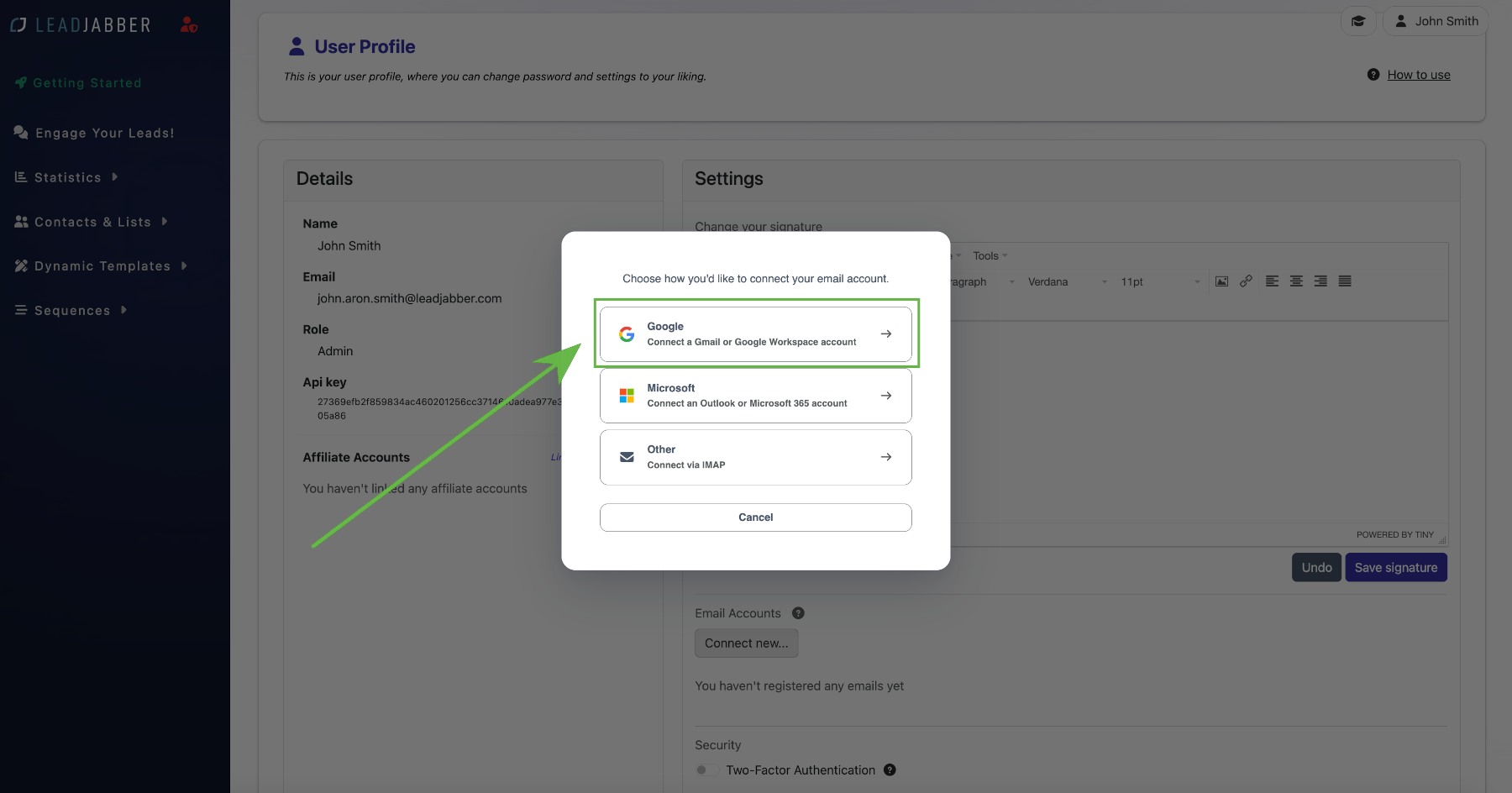
Choose Google.
-
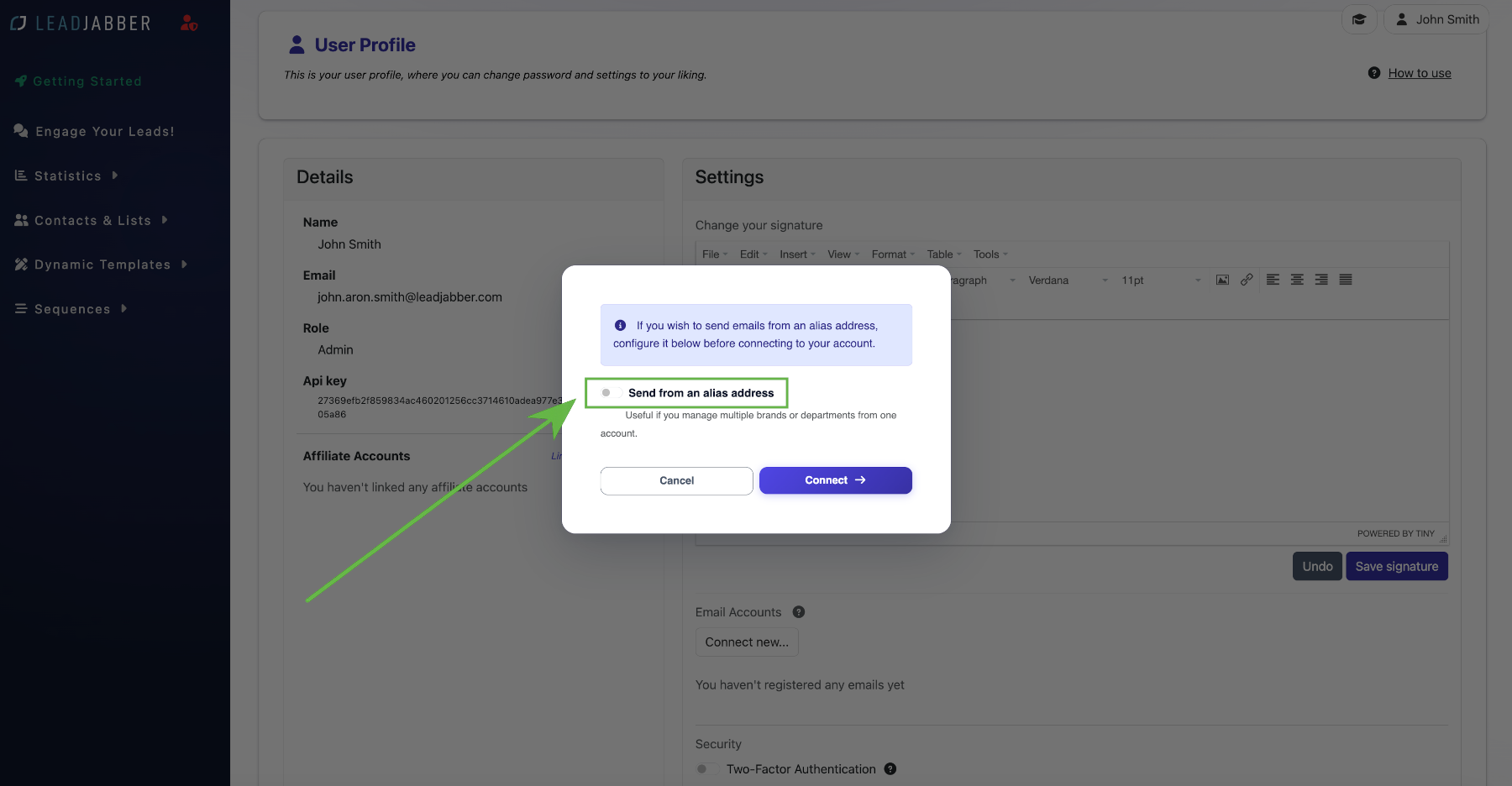
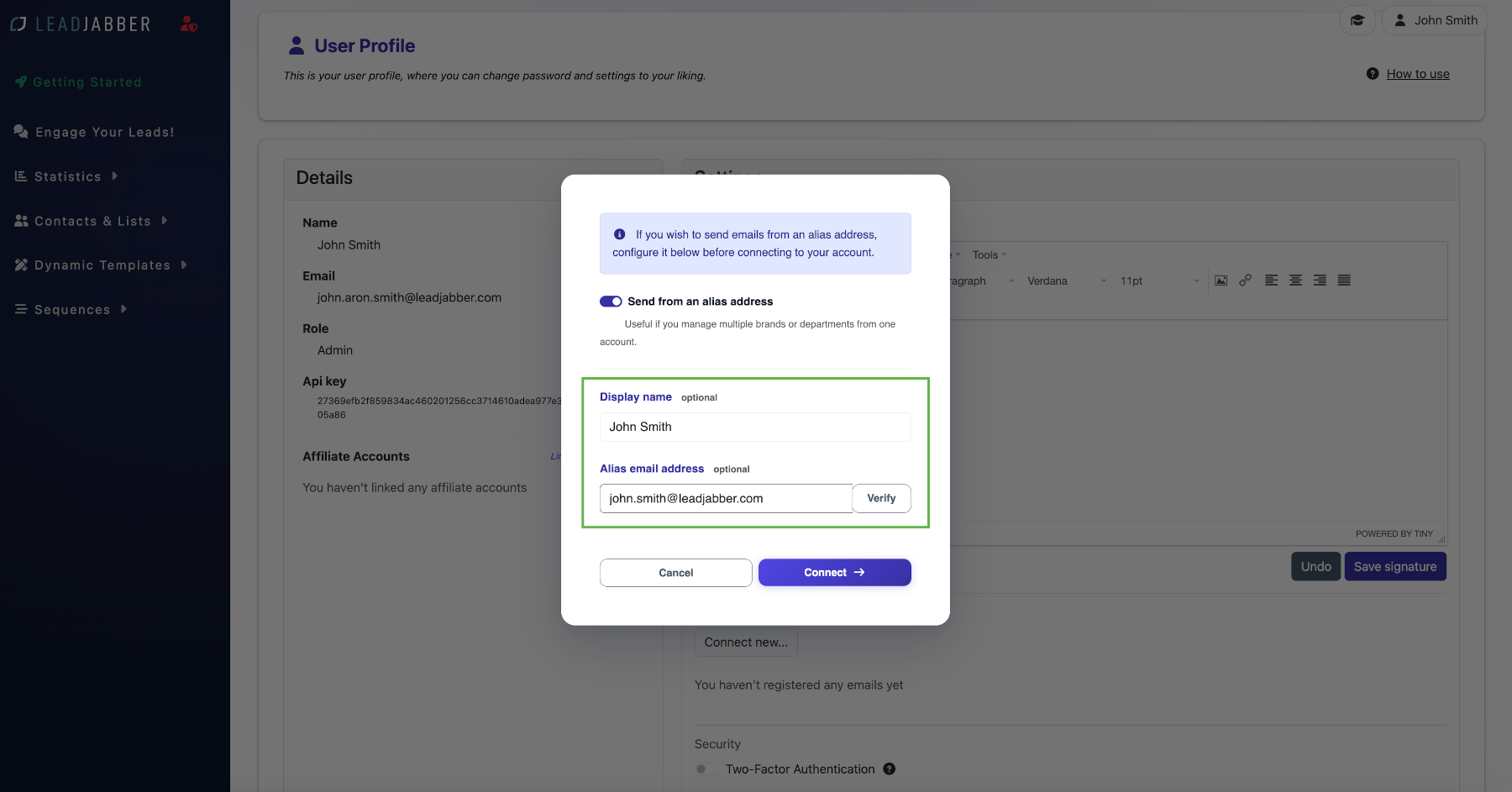
If you want to send from an alias address, check the alias box and enter the sender name and alias address. If not, leave it unchecked. Click Connect.
-
Google opens a sign-in window. Select the email account you want to connect.


-
Check the box that lets LeadJabber view your email messages and settings, then click Continue. LeadJabber needs this to register replies.

-
The account now shows as connected in your profile, and you can start sending from it.

If the permission box is left unchecked, the connection completes but LeadJabber cannot read replies. See No replies show up in the Engager. Disconnect the account and connect it again with the box checked.
When to contact support
Contact us if Google blocks the connection, for example because your Google Workspace admin restricts third-party apps. Email support@leadjabber.com with the address you are connecting.
Did this article solve your problem?