
Create an API key in SendGrid
Short answer
In SendGrid, go to Settings, then API Keys, and click Create API Key. Choose Custom Access and give it three permissions: Full Access to Mail Send, Full Access to Event Notification under Mail Settings, and Read Access to Sender Authentication. Copy the key at once, as SendGrid shows it only one time.
Permissions LeadJabber needs
Use Custom Access rather than Full Access, so the key can only do what LeadJabber needs:
- Mail Send: Full Access. Lets LeadJabber send your emails.
- Mail Settings, Event Notification: Full Access. Lets LeadJabber receive opens, bounces and other delivery events.
- Sender Authentication: Read Access. Lets LeadJabber check that your domain is verified.
All other permissions can stay at No Access.
Steps
-
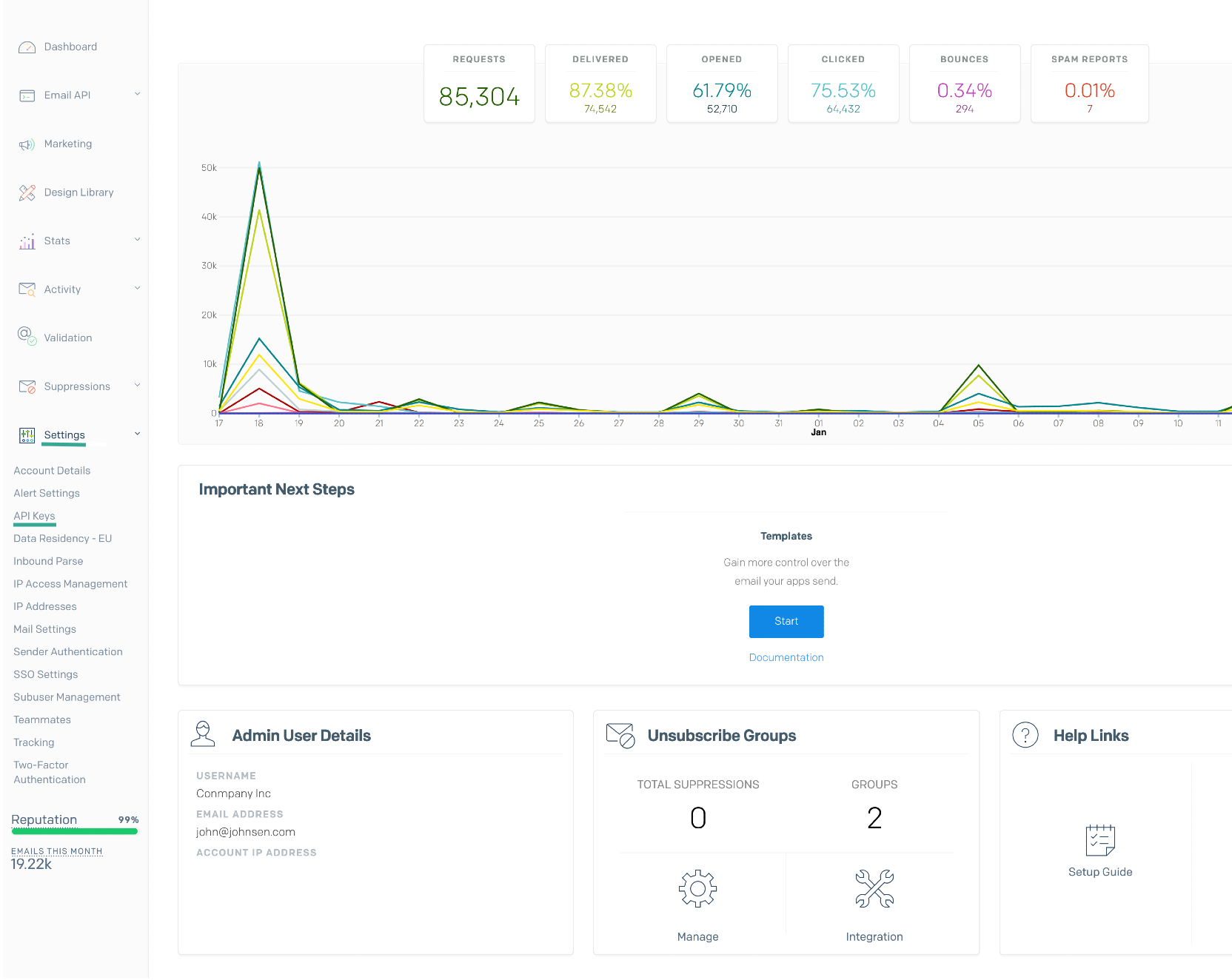
Log in to SendGrid and open Settings in the left menu.
-
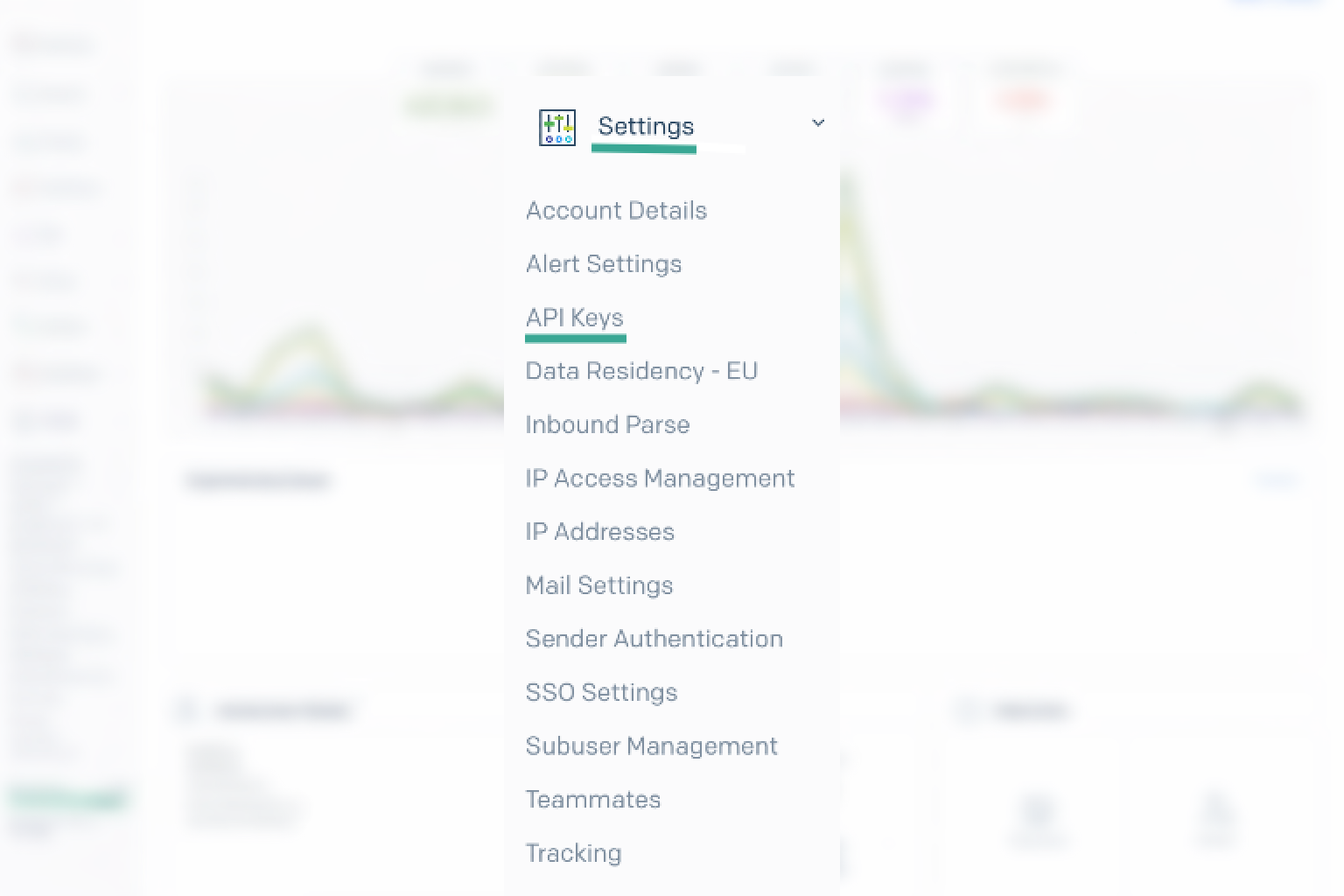
Click API Keys. If you have no keys yet, the list is empty.
-
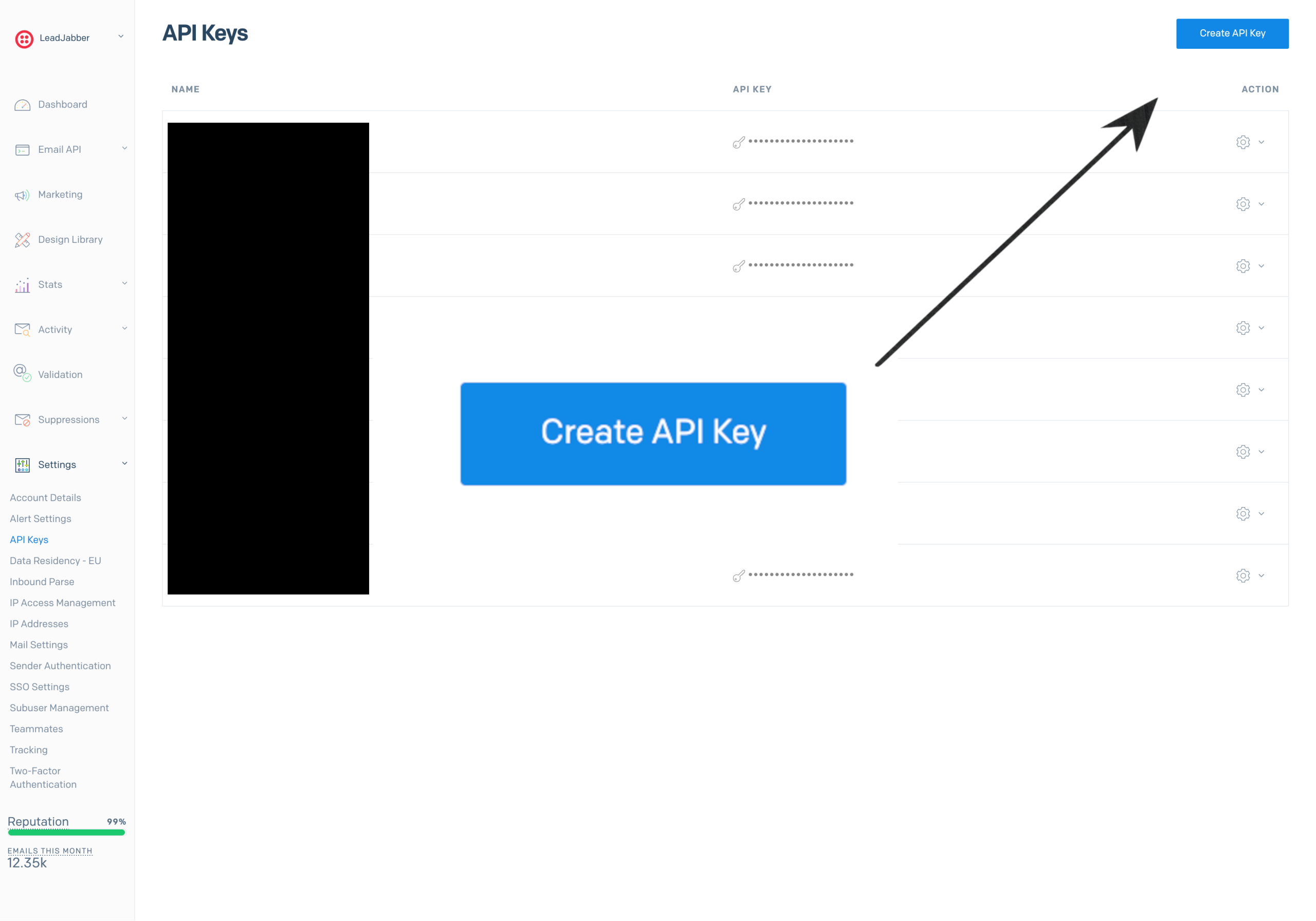
Click Create API Key in the top right corner.
-
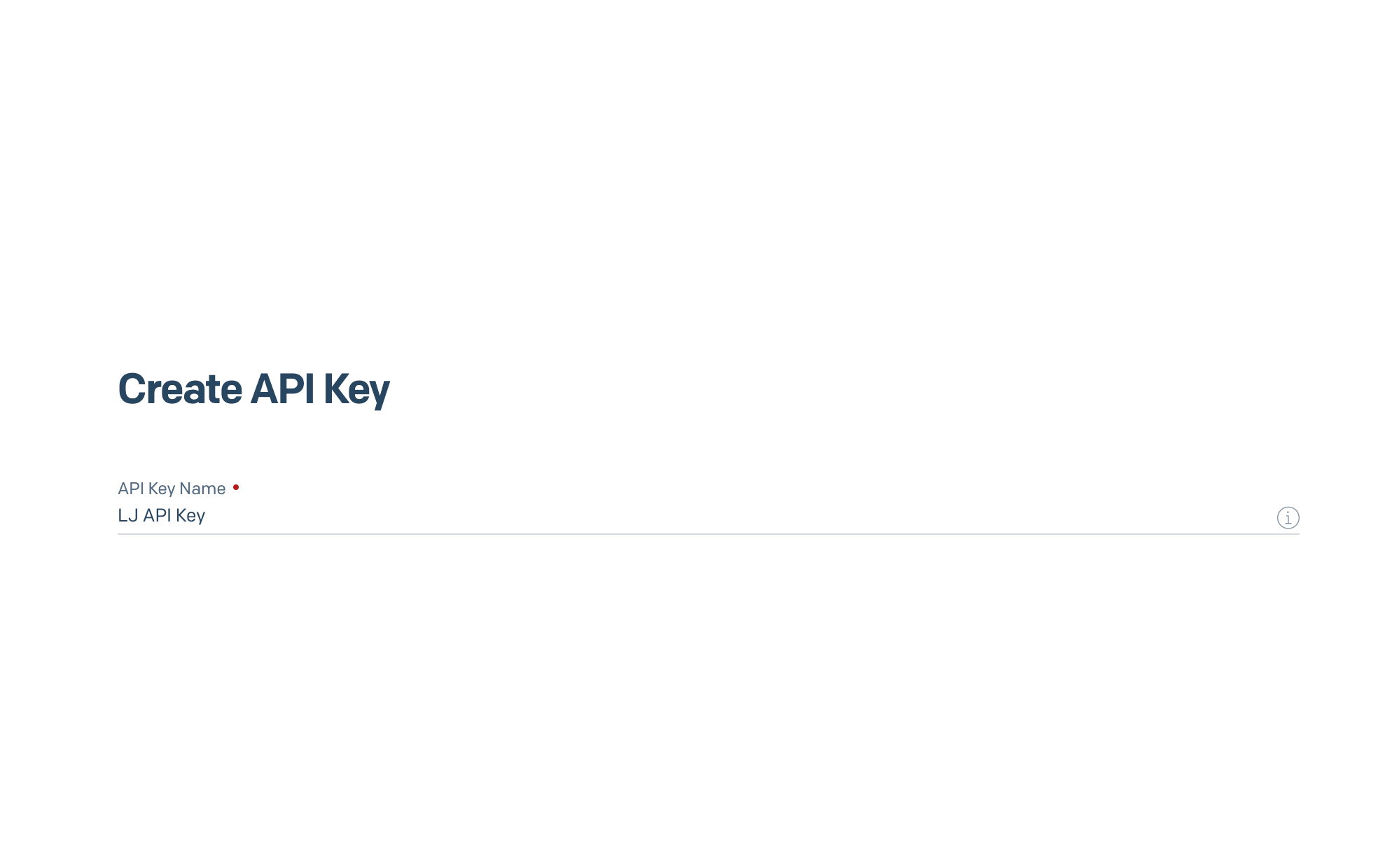
Give the key a name you will recognise, for example LeadJabber.
-
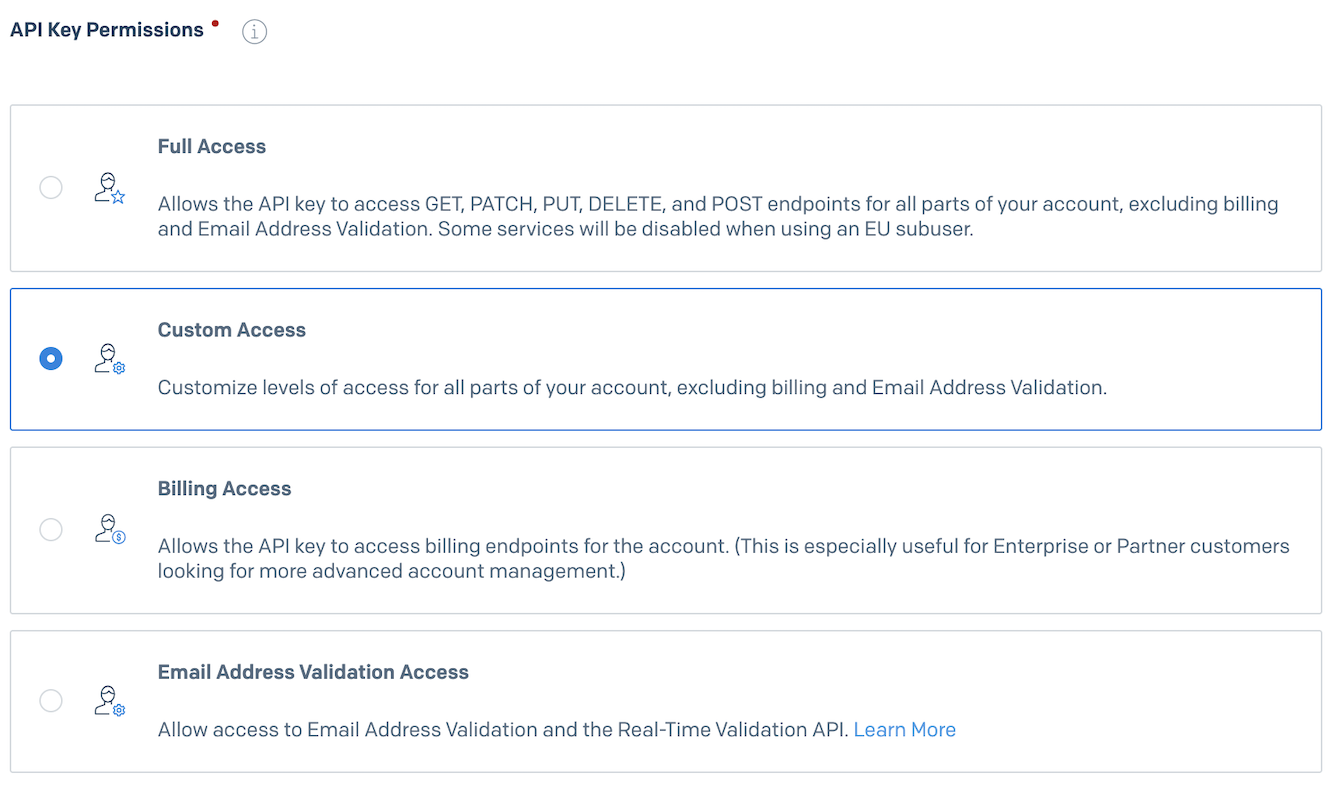
Under API Key Permissions, choose Custom Access.
-
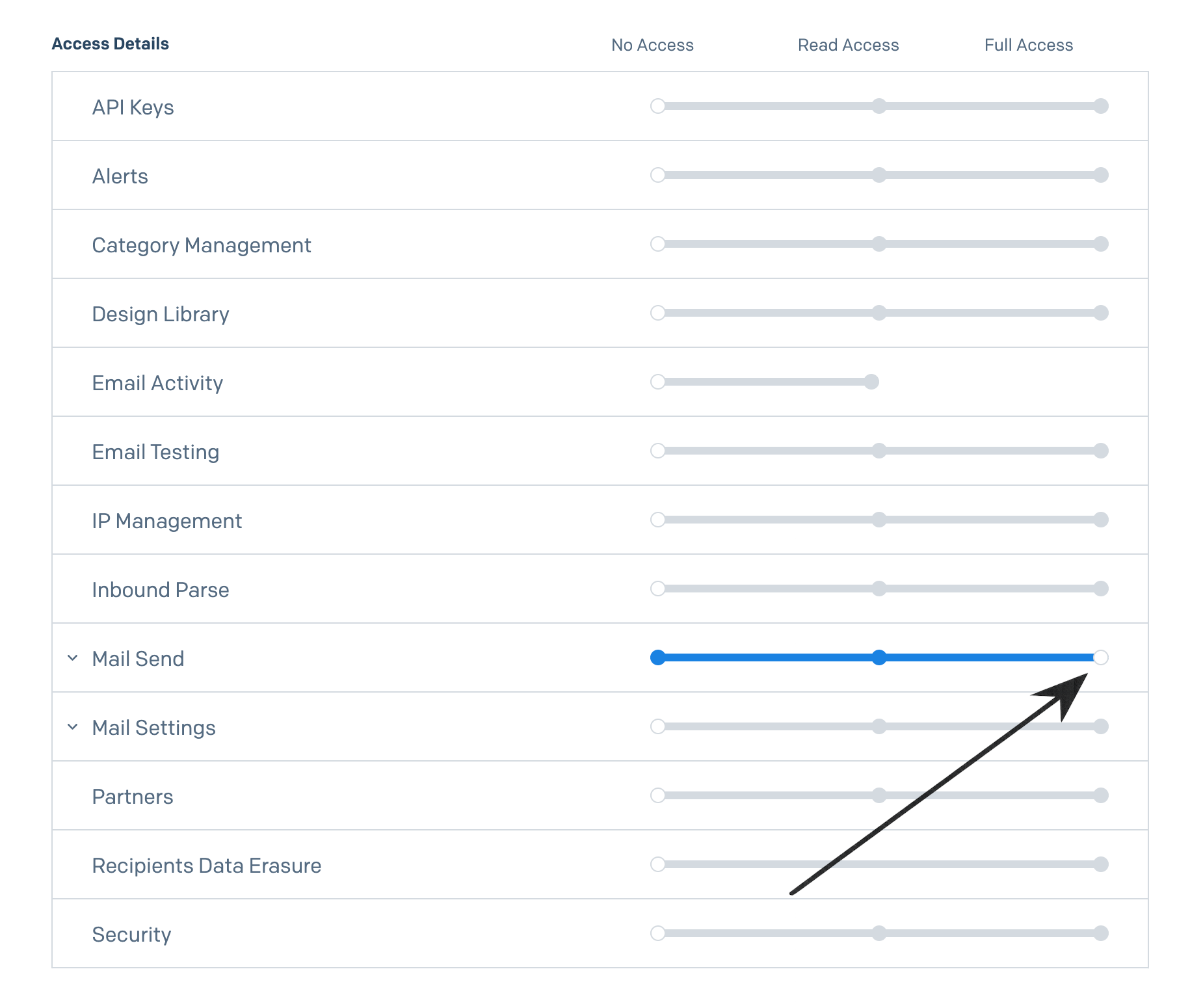
Set Mail Send to Full Access. You do not need to open the section.
-
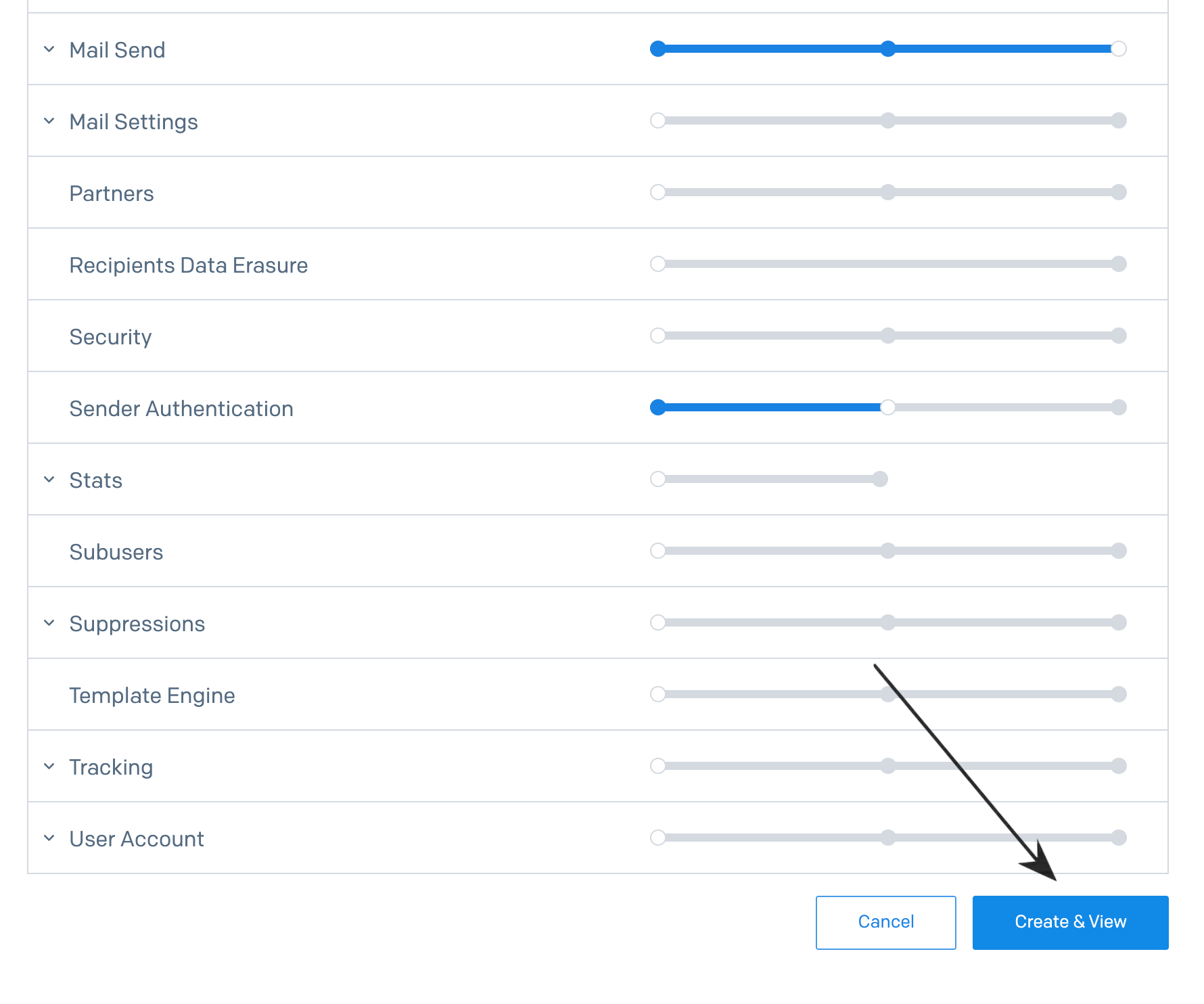
Open Mail Settings and set Event Notification to Full Access.

-
Set Sender Authentication to Read Access.

-
Scroll down and click Create & View.
-
Copy the key and store it somewhere safe right away.
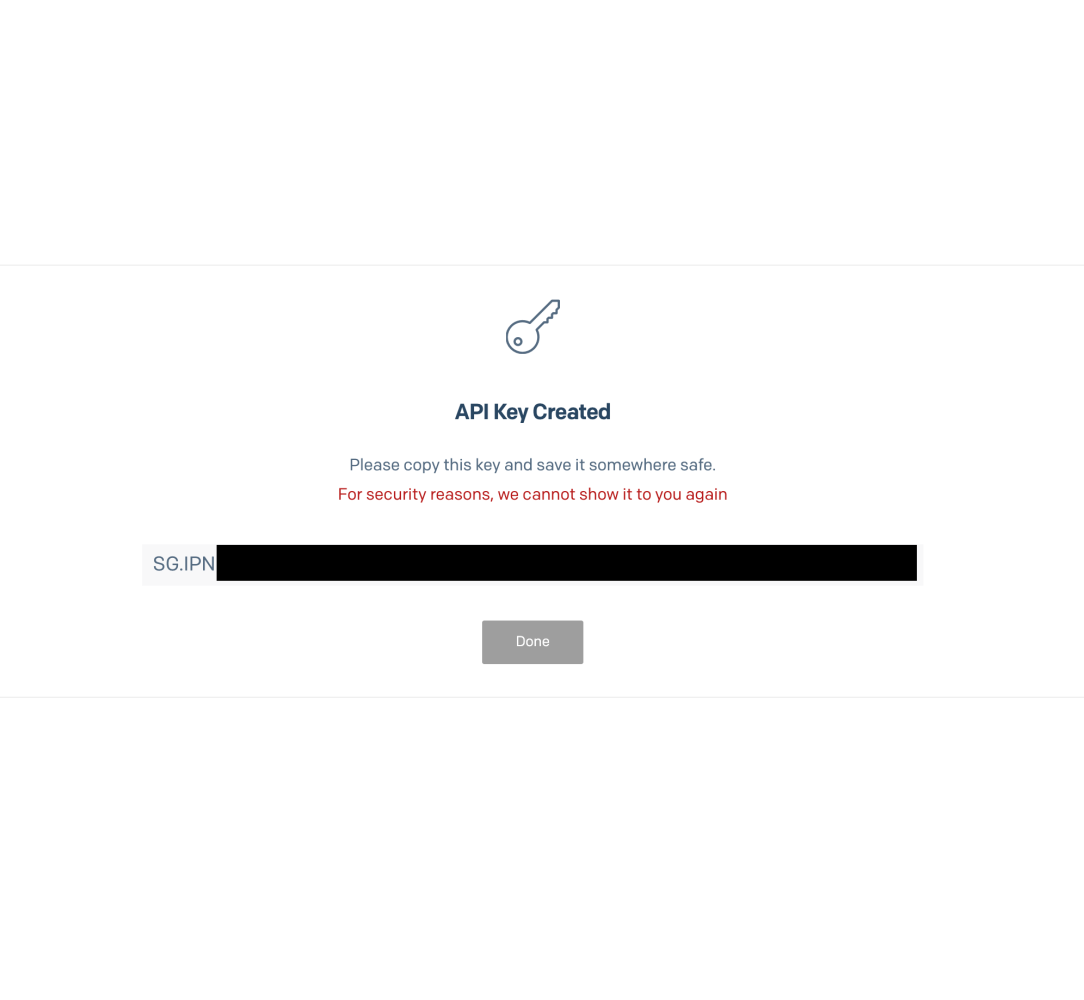
SendGrid shows the key only once. If you lose it, delete the key and create a new one.
Next step
Add the API key to LeadJabber.
When to contact support
Contact us if LeadJabber rejects the key after you have checked the three permissions. Email support@leadjabber.com Never send the key itself by email.
Did this article solve your problem?