
Authenticate your domain in SendGrid
Short answer
In SendGrid, go to Settings, then Sender Authentication, and click Authenticate Your Domain. Enter your domain, keep Automated Security on, then add the DNS records SendGrid gives you at your DNS provider and click Verify. LeadJabber can only send from a verified domain.
Before you begin
You need an active SendGrid account and access to your domain’s DNS settings, usually at the company where you bought the domain or in Cloudflare. If you do not have SendGrid yet, see Create a SendGrid account for LeadJabber.
Steps
-
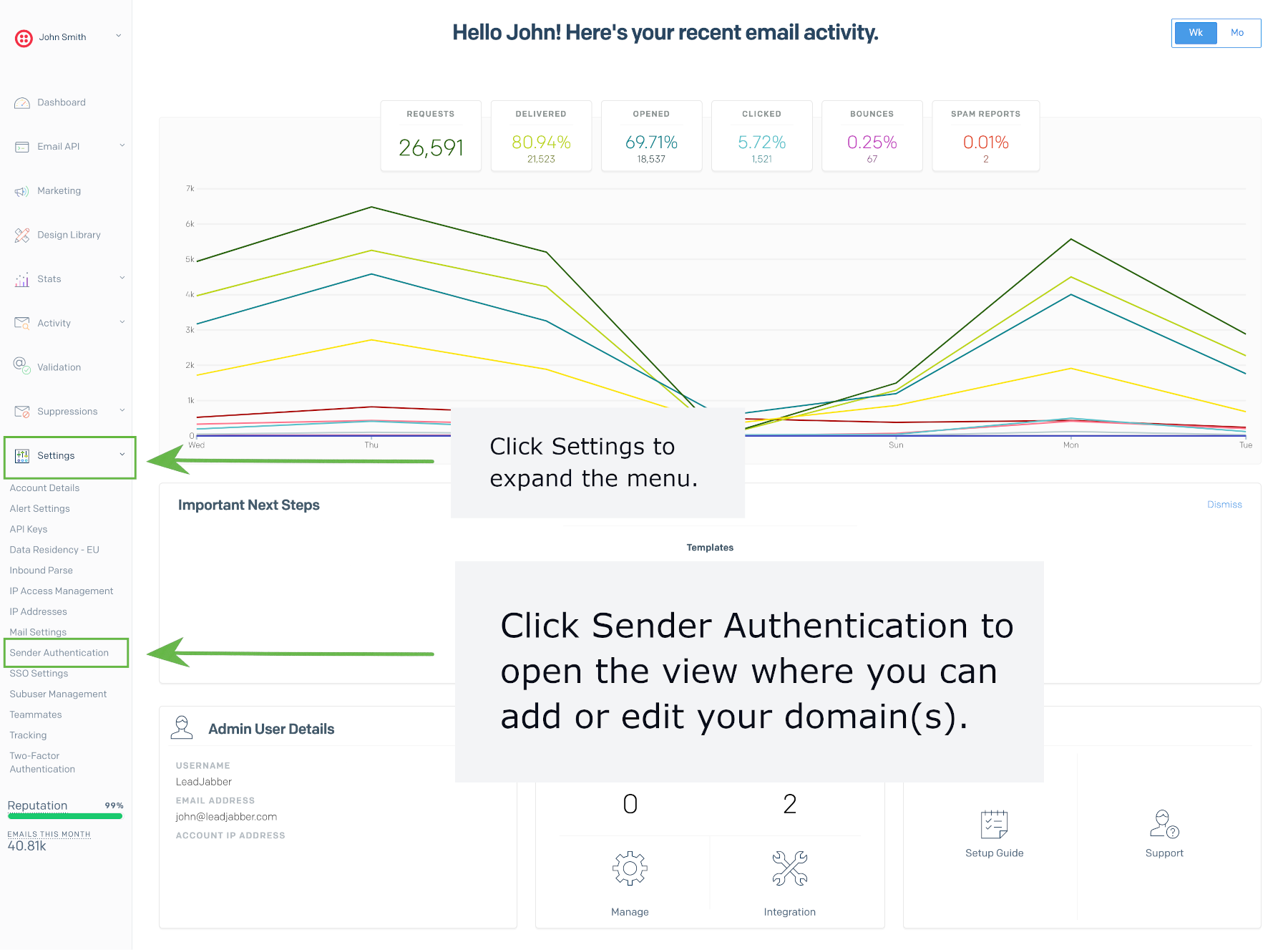
In SendGrid, open Settings and select Sender Authentication.
-
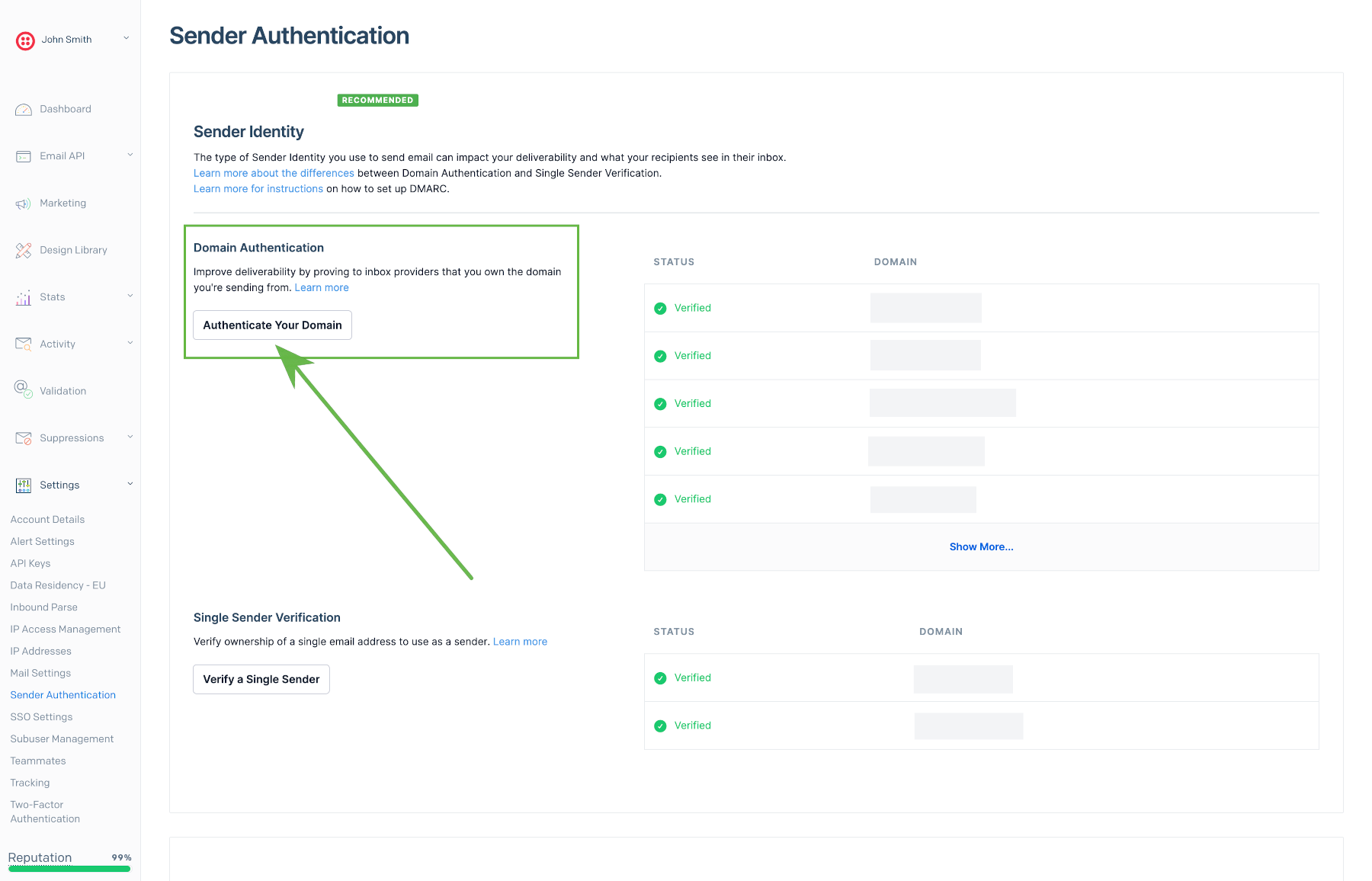
Click Authenticate Your Domain.
-
Choose your DNS host from the list, or Other if it is not listed. Leave Link Branding set to No and click Next.

-
Enter your domain name, for example yourdomain.com, and check the spelling.

-
Open Advanced Settings. Leave Automated Security on. If the domain is already used with SendGrid elsewhere, switch on Use a custom DKIM selector and enter a short unique value.


-
SendGrid shows the DNS records to add. Create each one at your DNS provider exactly as shown, as CNAME records. If you are asked for a TTL, use 300 seconds or 5 minutes.

-
Back in SendGrid, check I’ve added these records and click Verify.

-
When the records are found, the domain shows as verified.

Entering the records correctly
Enter only the first part of each name in the host field, for example s1._domainkey. Many DNS providers add your domain automatically, so pasting the full name creates a record like s1._domainkey.yourdomain.com.yourdomain.com that SendGrid cannot find. If you use Cloudflare, set every SendGrid record to DNS only (grey cloud).
Verification failed? See DKIM verification fails in SendGrid for the common causes and how to check your records.
Also add a DMARC record
Gmail, Yahoo and Microsoft expect domains that send in volume to have a DMARC record. If your domain does not have one, add a TXT record named _dmarc with a value such as v=DMARC1; p=none; as a starting point.
Next step
With the domain verified and your API key added, LeadJabber can send from your domain.
When to contact support
Contact us if the records look correct and verification still fails after 24 hours. Email support@leadjabber.com with your domain name and a screenshot of the records at your DNS provider.
Did this article solve your problem?