
Create custom fields
Short answer
A custom field stores your own information about a contact or a company, such as an industry or a personal opening line. Click your name in the top right corner, choose Custom Fields and click New. Fill in Field name, Scope, Field type and Field variable. Insert the field in an email from the Variables menu, under Custom Fields.
What a custom field is
A custom field works like the built-in variables, such as first name, but holds content you decide. You can store one word, for example a region, or a whole sentence written for each contact. When the email is sent, LeadJabber replaces the variable with the value stored on that contact or company.
Create a custom field
-
Click your name in the top right corner and choose Custom Fields under Configuration.

-
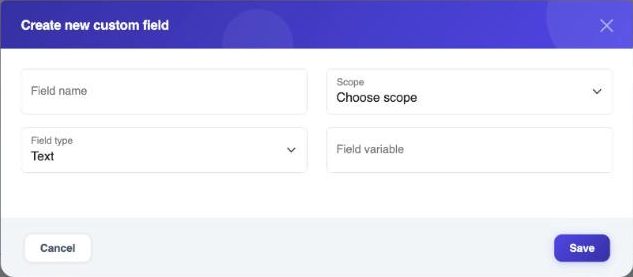
Click New. Create new custom field opens.
-
Enter a Field name.
-
Under Scope, choose Contact if the value belongs to a person, or Company if it belongs to the company.
-
Under Field type, choose Text or Select.
-
Enter a Field variable. This is the name you use in emails.
-
Save the field.
Text or Select
Text lets you store any text, from one word to a full sentence. Select limits the value to a list of choices you enter under Select options, which keeps the values consistent across contacts.
Fill the field with data
The fastest way to fill a custom field for many contacts is to include a column for it when you import contacts from a CSV or Excel file. See Import contacts from a CSV or Excel file. Custom fields also appear in the contact form, where you can fill them in one contact at a time.
Use the field in an email
In the email editor, click Variables, then Custom Fields, and choose the field. LeadJabber inserts it as {cfield: followed by the field variable and }, for example {cfield:region}. The Variables menu is available in Email Templates and in the Send E-mail step of the Sequence Builder.

Check that every contact in the sequence has a value in the field before you start it. Otherwise the email is sent with an empty space where the text should be.
See and edit your custom fields
Custom Fields lists every field with Field name, Field type, Options, Assigned table, Assigned column and Uses. Uses shows how many times the field has stored data. Select a field and click Edit to change it.

Remove a custom field
Select the field and click Remove. The field is removed from the contact forms. Look at Uses first: a field with uses holds data on your contacts, and emails that contain its variable will no longer get a value from it.
When to contact support
Contact us if a custom field shows up empty in sent emails even though the contacts have a value, or if you removed a field by mistake. Email support@leadjabber.com with the field name and the name of a contact it affects.
Did this article solve your problem?