
Import contacts from a CSV or Excel file
Short answer
Go to Contacts & Lists, then Import, click Import and upload a .csv or .xlsx file. Choose whether to overwrite existing contacts and whether to add the contacts to a list, check the column mapping, preview, and click Initiate Import. Importing contacts needs a paid subscription.
Before you begin
You need a .csv or .xlsx file with one contact per row and column headers in the first row, for example Company, Name and Email. Each contact needs at least an email address.
Importing contacts needs a paid subscription. See Change your plan or cancel your subscription.
Upload the file
-
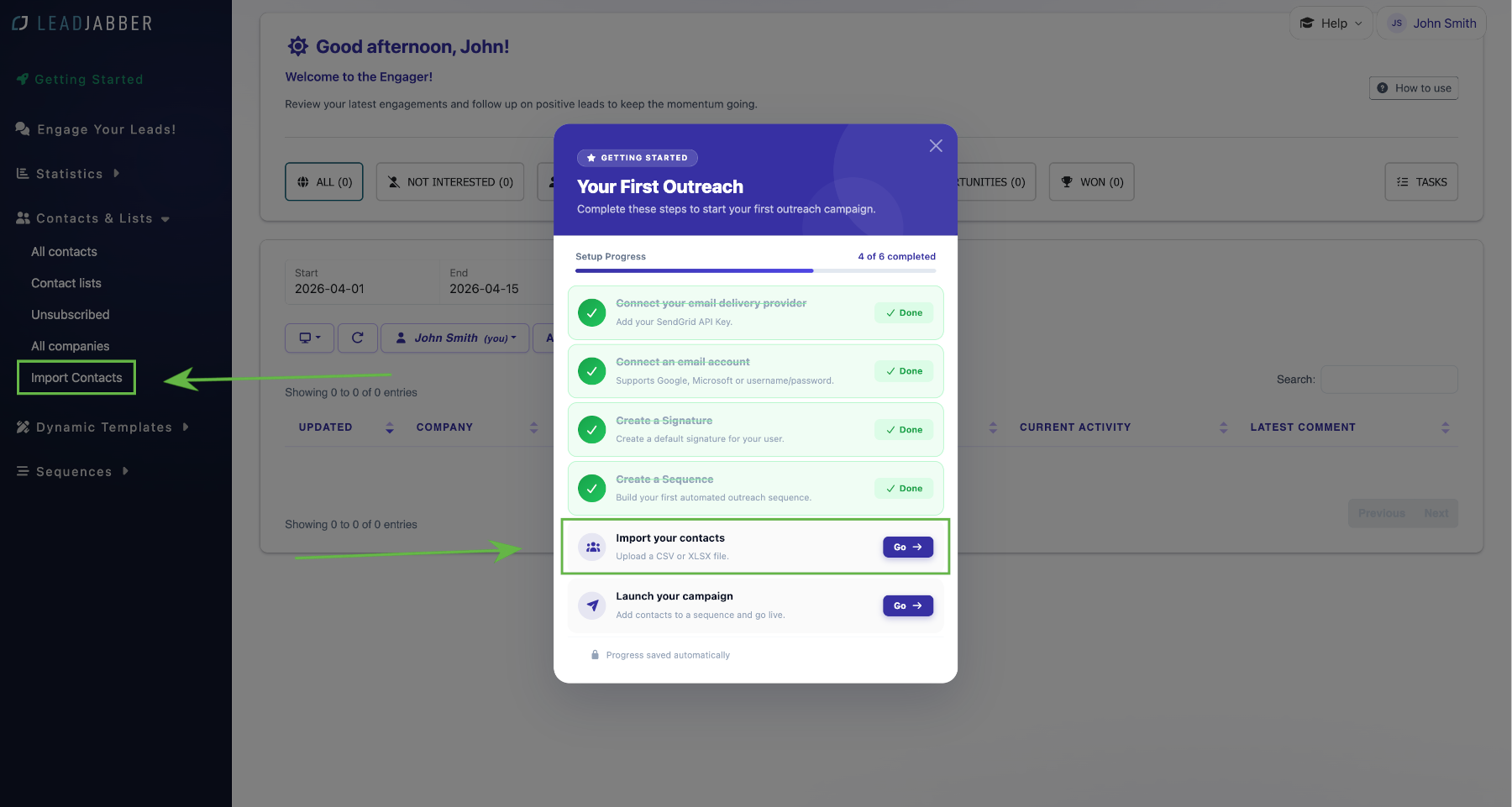
Open Contacts & Lists in the left menu and click Import. New users can also click Go next to Import your contacts in the Getting started menu.
-
The page lists earlier imports with their status and progress. Click Import at the top and select the file.

-
Choose whether to check Overwrite already existing contacts. Check it to update contacts that are already in LeadJabber. Leave it unchecked to add new contacts only.

Choose whether to add the contacts to a list
Use Add the imported contacts to a list?:
- No thanks: contacts are saved in LeadJabber but not added to a list.
- Yes, please! (all of them): all contacts in the file are added to a list.
- Just the new contacts: only contacts that were not in LeadJabber before are added to the list.
- Just the updated contacts: only existing contacts whose information changed are added.

If you add contacts to a list, choose an existing list or Create a new list and give it a name. A comment, such as where the contacts came from, helps you keep track later.


Map the columns and import
-
LeadJabber matches the columns in your file to its own fields. Correct any that are wrong in the dropdowns, then click Preview.

-
Check the preview. If something looks wrong, click Column Config to go back. When it looks right, click Initiate Import.

-
You return to the import log. When the status shows Done and the progress bar reaches 100 percent, the contacts are ready. Select the import and click Results to see how many contacts were inserted and how many were skipped.

Next step
Add the contacts to a sequence.
When to contact support
Contact us if an import stops before 100 percent or contacts are missing afterwards. Email support@leadjabber.com with the file you imported.
Did this article solve your problem?