
How the Engager sorts replies
Short answer
When a contact replies, LeadJabber evaluates the reply with AI and places the contact in the Engager. Positive replies go to Leads, neutral replies to Prospects and negative replies to Not Interested. Out-of-office and other automatic replies go to Prospects. If you turn the AI off for a sequence, every reply goes to Prospects for you to sort.
The stages in the Engager
The Engager is a pipeline for booking meetings. Each tab is a stage:
- Not Interested: the contact said no. Negative replies are placed here automatically.
- On Hold: not now. You set this stage yourself, and you can still schedule a follow-up, for example in three months.
- Prospects: neutral replies, out-of-office and other automatic replies, and every reply from a sequence where the AI is turned off.
- Leads: positive replies. In LeadJabber, a lead is a contact who has replied positively.
- Opportunities: the contact is close to a meeting, for example while you agree on a time. You set this stage yourself.
- Won: a meeting is booked. You set this stage yourself. Because LeadJabber is built for booking meetings and sales calls, Won means a booked meeting, not a closed deal.
How the AI evaluates a reply
LeadJabber reads each reply and marks it Positive, Neutral or Negative in the Evaluation column of the Engager. The evaluation decides the stage: Positive goes to Leads, Neutral to Prospects and Negative to Not Interested. This happens automatically for every sequence where Set engager status using AI. is turned on, which it is by default.

Out-of-office and automatic replies
Out-of-office messages and other automatic replies are placed in Prospects. By default, a contact who replies is also removed from the sequence. To continue the sequence for that contact:
-
Select the contact in the Engager and click Actions, then Add to a sequence.
-
Under Select a sequence, choose the sequence. Uncheck Only show sequences you own to see sequences owned by colleagues.
-
Under Select stage, choose the stage the contact should continue from.
-
Choose the date and time under Schedule for, or turn on Activate now to run the actions in that stage immediately.
-
Click Add Contact.

Turn the AI off for a sequence
If you prefer to sort every reply yourself, turn the AI off in the settings of the sequence:
-
Open the sequence in the Sequence Builder and click Settings and Save.
-
In the section about replies, uncheck Set engager status using AI.
-
Click Save Sequence.
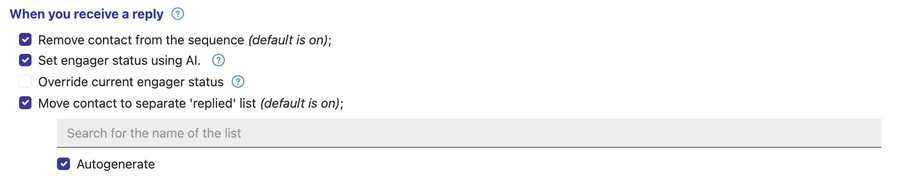
Replies to that sequence then go to Prospects, and the Evaluation column stays empty for them.
Contacts that already have a stage
The setting Override current engager status, in the same section of the sequence settings, decides whether the AI may change the stage of a contact who already has one. It is off by default, so a contact you have moved yourself, for example to Opportunities, stays where you put it.
Change the stage yourself
Click Change Status on the row in the Engager, or open the reply and click Set Status. See Handle replies in the Engager.
When to contact support
Contact us if replies regularly end up in the wrong stage, for example clear rejections marked Positive. Email support@leadjabber.com with the contact’s email address, the sequence name and the date of the reply.
Did this article solve your problem?