
Choose when contacts are sent
Short answer
When you add contacts to a sequence or reply from the Engager, the Schedule for field shows when the email goes out. Click the calendar icon to pick another date, hour and minute, or check Activate instantly to send at the next available slot. Then click Continue.
Where you choose the time
The scheduling options appear whenever you add a contact or a list to a sequence, from the sequence manager, a contact card or the Engager, and when you send a reply from the Engager. The Schedule for field shows the time LeadJabber suggests, based on the stage settings.

Steps
-
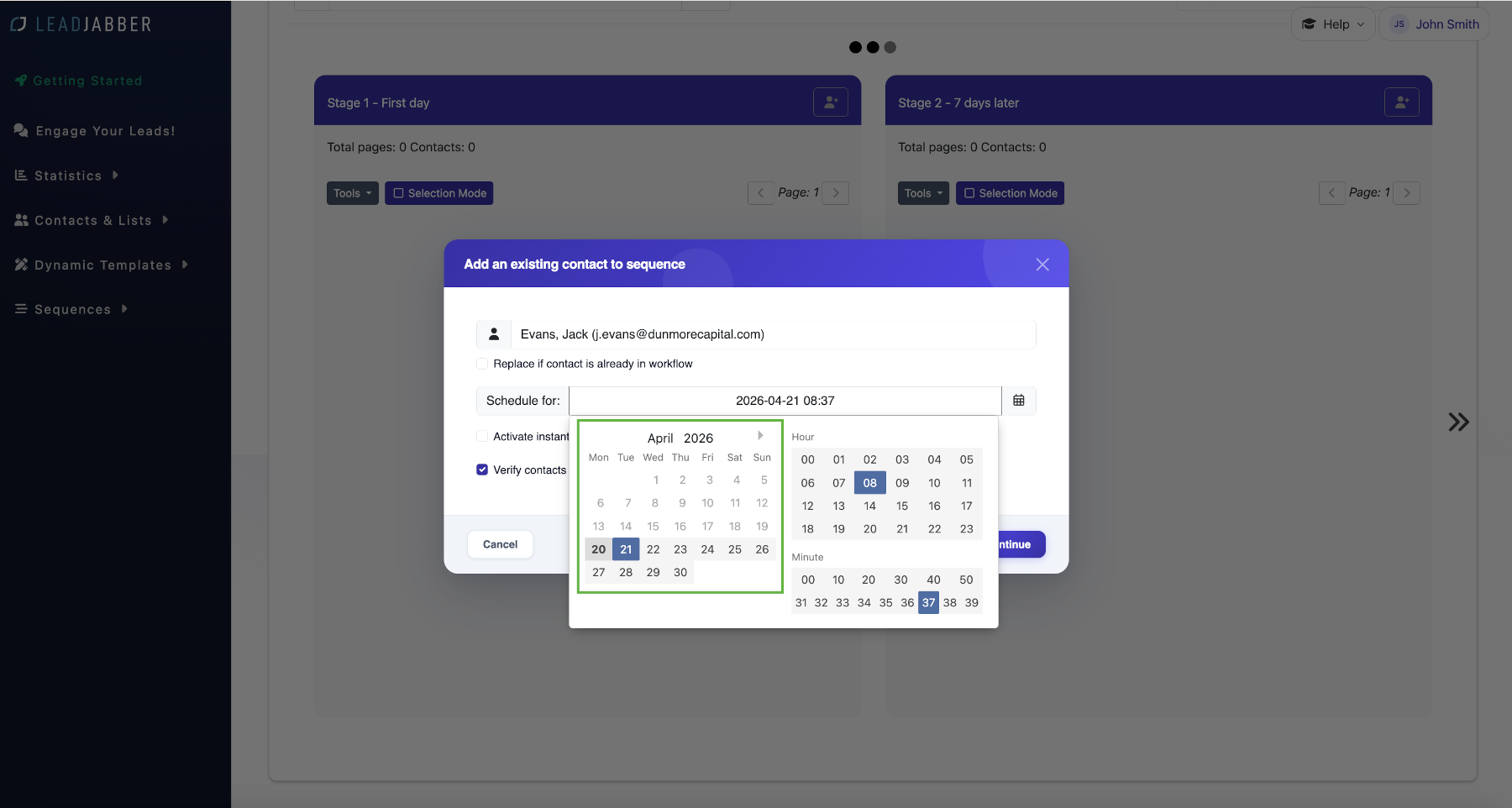
Click the calendar icon next to Schedule for.

-
Click the date you want. Use the arrow at the top to move to the next month.
-
Under Hour and Minute, click the time you want. The Schedule for field updates as you click.

-
To send right away instead, check Activate instantly. The contact is queued for the next available sending slot.

-
Click Continue.

How the schedule affects the next stages
The time in each stage is counted from when the contact became active in it. If a stage lasts 7 days and you schedule a contact for tomorrow, they move to the next stage 7 days after tomorrow. To check, click the contact in the sequence manager and choose Details to see Active from and Next stage. The same dates are shown under Sequences on the contact card.
When to contact support
Contact us if contacts are not sent at the time you scheduled. Email support@leadjabber.com with the sequence name and the time you chose.
Did this article solve your problem?