
Handle replies in the Engager
Short answer
The Engager collects every reply to your sequences in a pipeline from Not Interested to Won. Select a reply and click View Reply to read it, then use Set Status to move the contact through the pipeline or Reply With A Sequence to answer. The Actions menu lets you add an engagement manually, hand a contact to a colleague or put them in a sequence at any stage.
The pipeline
Every contact who replies to a sequence appears in the Engager. Tabs at the top show how many contacts are in each stage: Not Interested, On Hold, Prospects, Leads, Opportunities and Won. Click a tab to see only that stage.

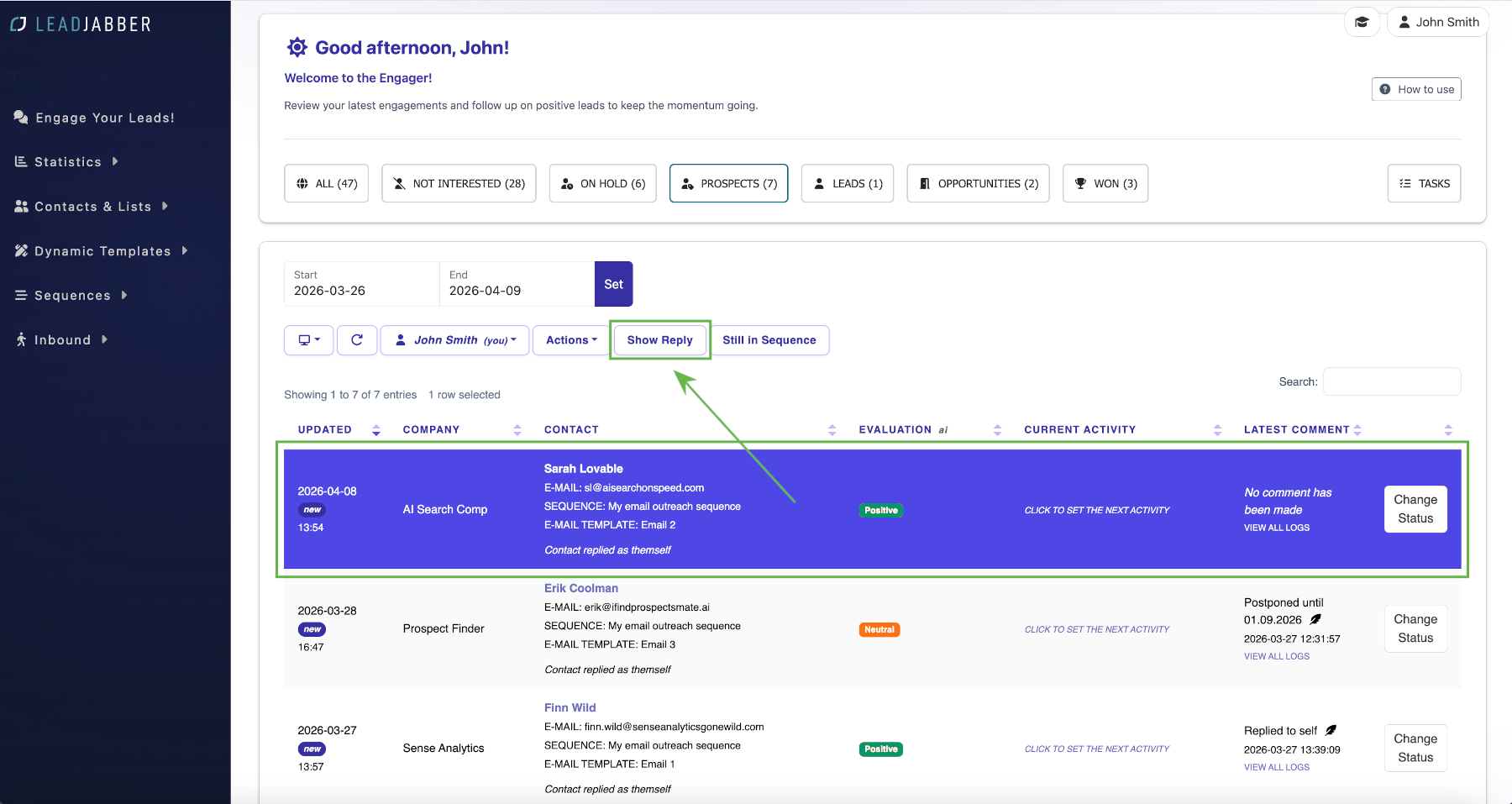
Each row shows the contact, the sequence and email they replied to, the AI evaluation of the reply (Positive, Neutral or Negative) and the current status. New replies are marked new. Click the label to remove it when you have handled the reply.
If the reply came from a different address than the one you emailed, for example a colleague of the contact, the row says Contact replied as followed by the sender. Click the sender to add them as a new contact and make them the engaged contact. See Reply directly to a contact from the Engager.
Use Start, End and Set to choose the period, the Responsible menu to see the replies of a colleague, and Search to find a company or contact.
Read a reply
-
Select the contact and click View Reply, or double-click the row.
-
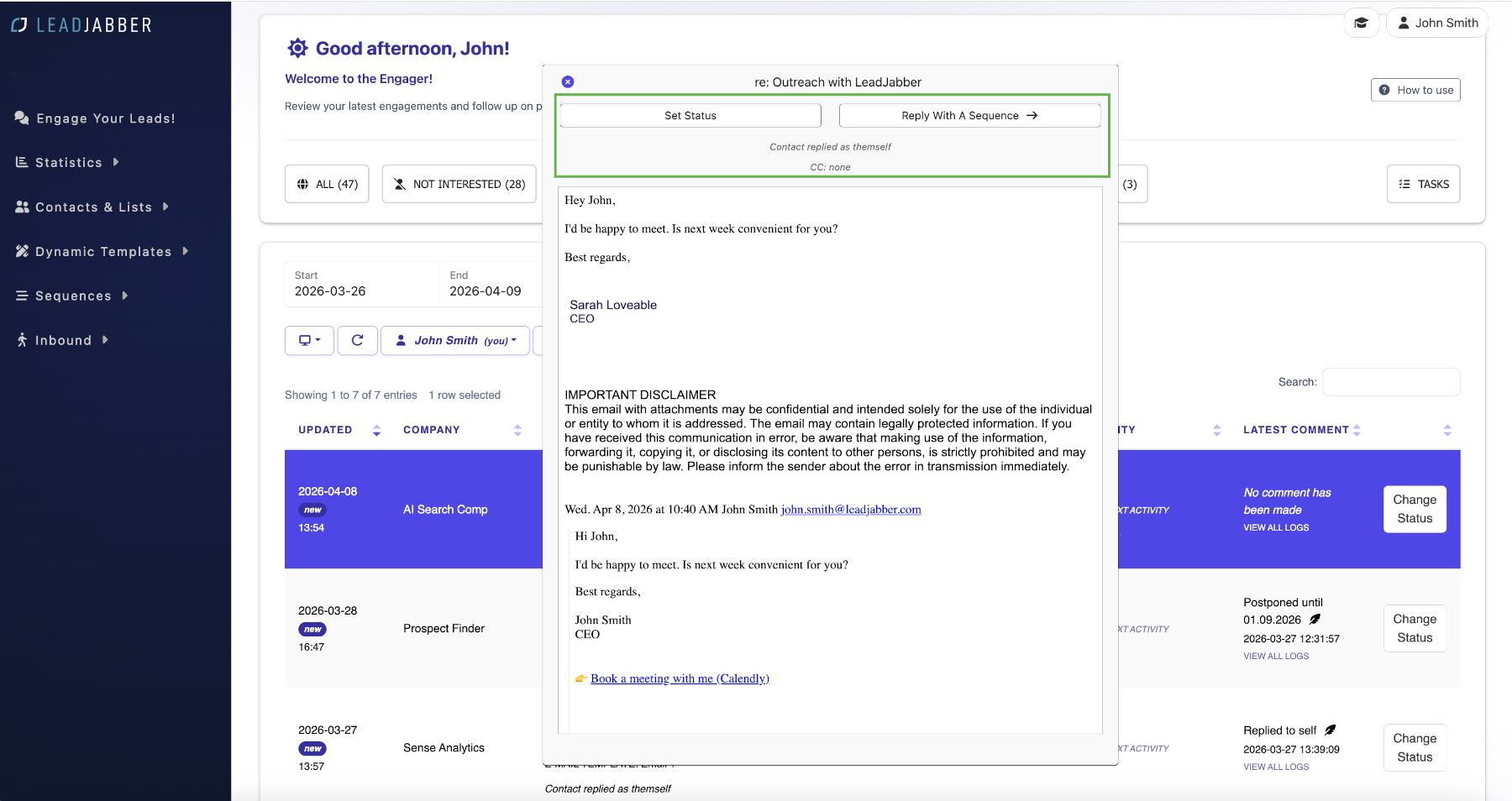
The reply panel shows the whole thread, any CC addresses, and which sequence and email the contact replied to.
Set the status
In the reply panel, click Set Status and choose where the contact belongs in the pipeline. If they asked not to be contacted, check Add contact to unsubscribed list so no sequence emails them again. You can also change the status directly with Change Status on the row in the Engager. See How the Engager sorts replies for what each stage means and how replies are placed automatically.

Reply with a sequence
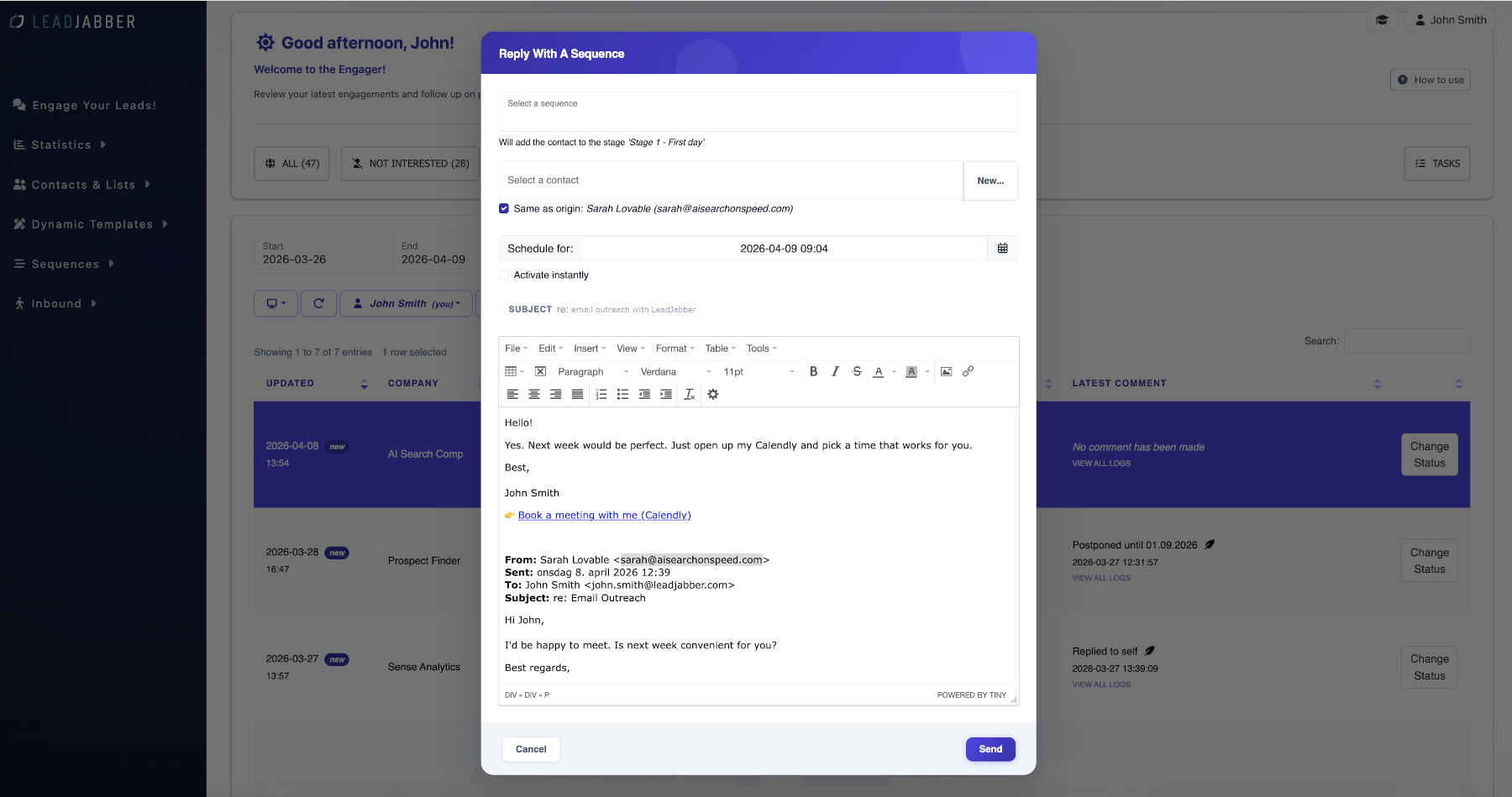
Click Reply With A Sequence to answer through one of your sequences, for example one for booking meetings. Choose the sequence, check the recipient, choose when to send, edit the text if needed and click Send.
The Actions menu
In the main Engager view, select a contact and click Actions.
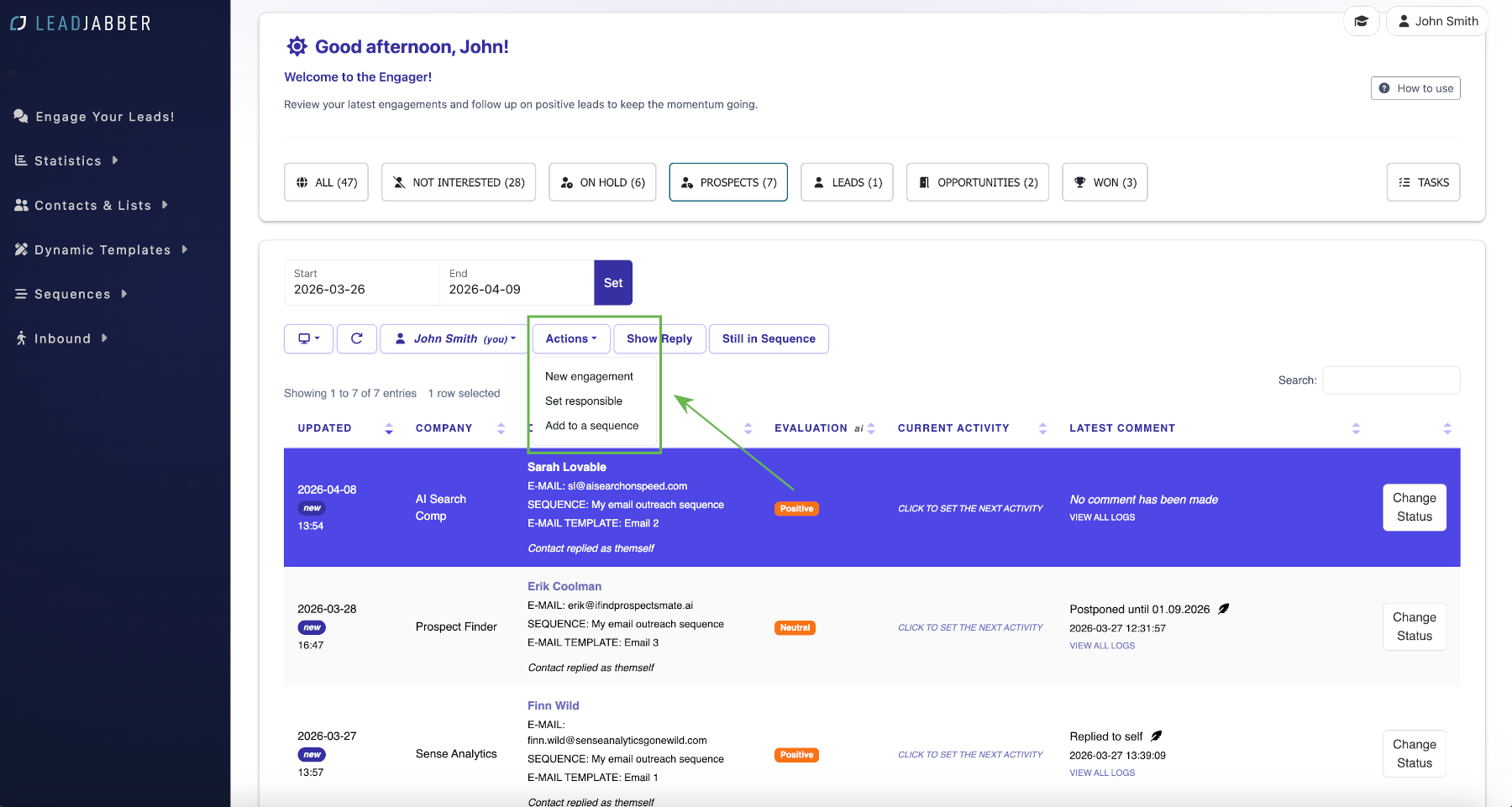
- New engagement adds a contact to the Engager by hand, for example after a phone call. Search for the contact or enter the details, set a status and add a comment.
- Set responsible hands the contact to a colleague, who then sees it in their Engager. Use it when a warm lead goes to someone else to close.
- Add to a sequence puts the contact in any sequence at any stage, for example straight to a follow-up. Choose a time under Schedule for, or turn on Activate now.


When to contact support
If replies do not show up in the Engager, see No replies show up in the Engager first. Contact us if that does not solve it. Email support@leadjabber.com with the contact’s email address and the sequence name.
Did this article solve your problem?