
Add your SendGrid API key to LeadJabber
Short answer
In LeadJabber, open the Getting started menu and click Connect your email delivery provider. Paste your SendGrid API key and click Continue. LeadJabber checks the key and confirms when it is connected.
Before you begin
You need a SendGrid API key with the right permissions. If you do not have one, follow Create an API key in SendGrid first.
Steps
-
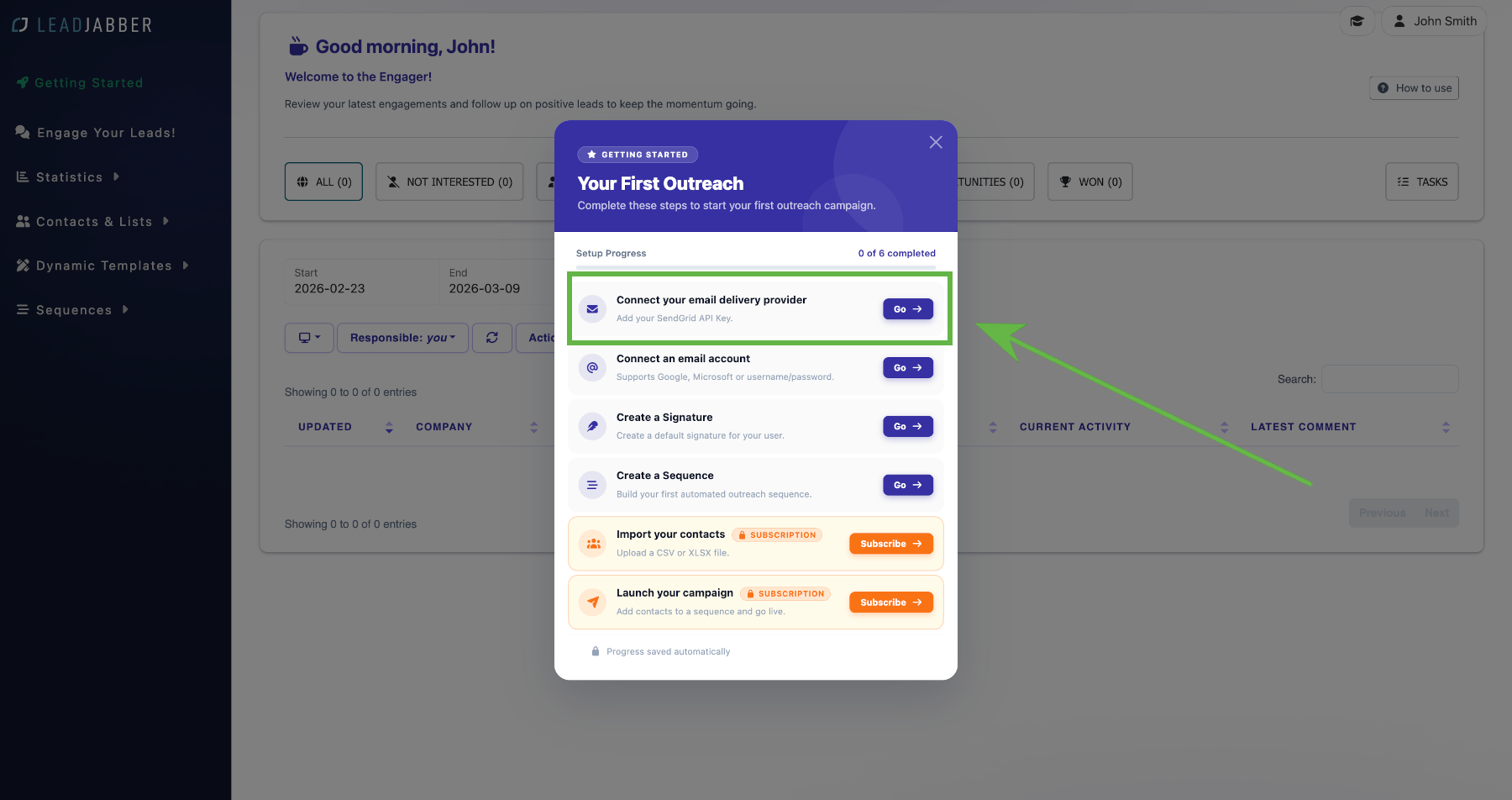
In LeadJabber, open the Getting started menu and click Connect your email delivery provider.
-
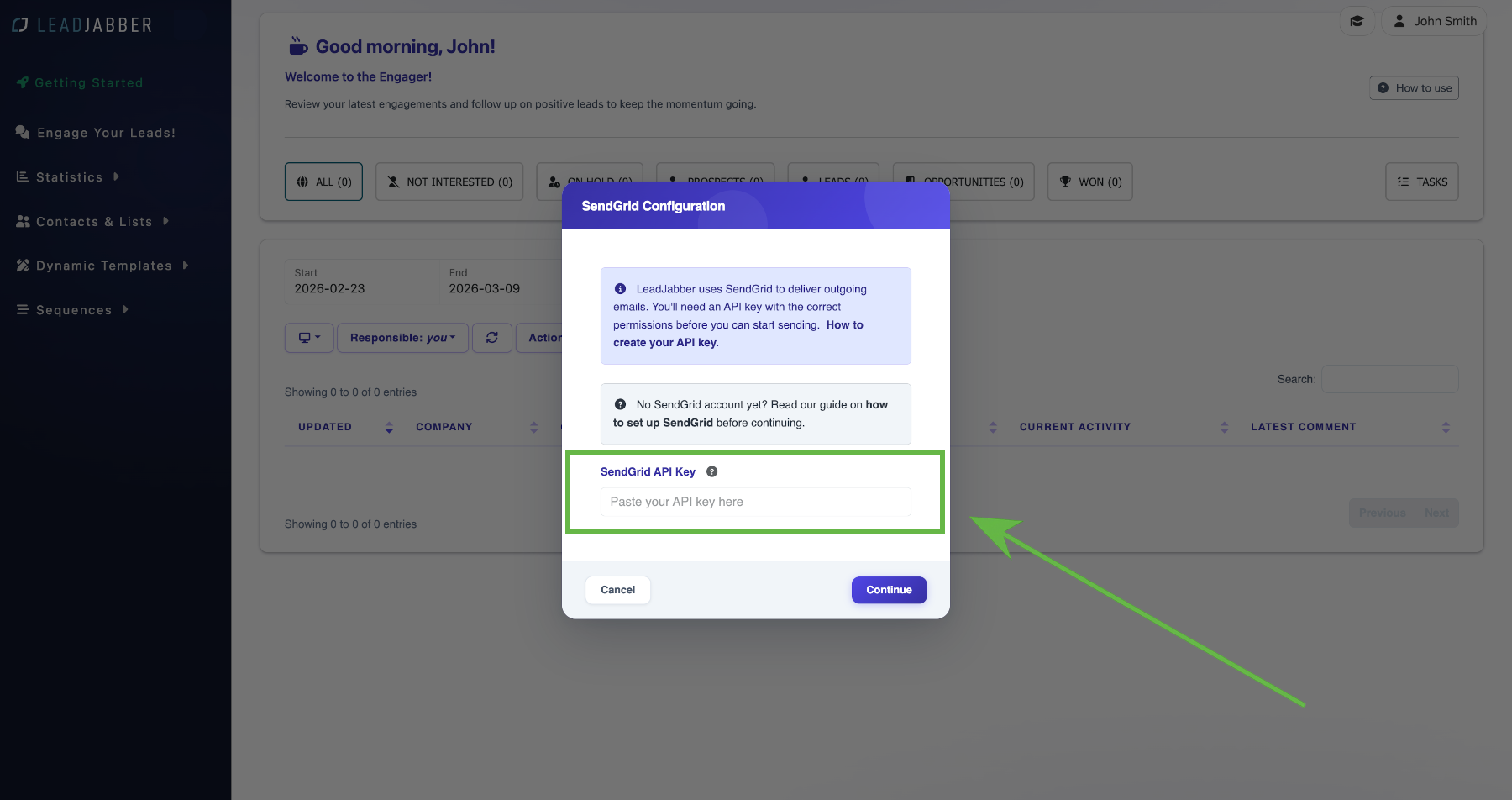
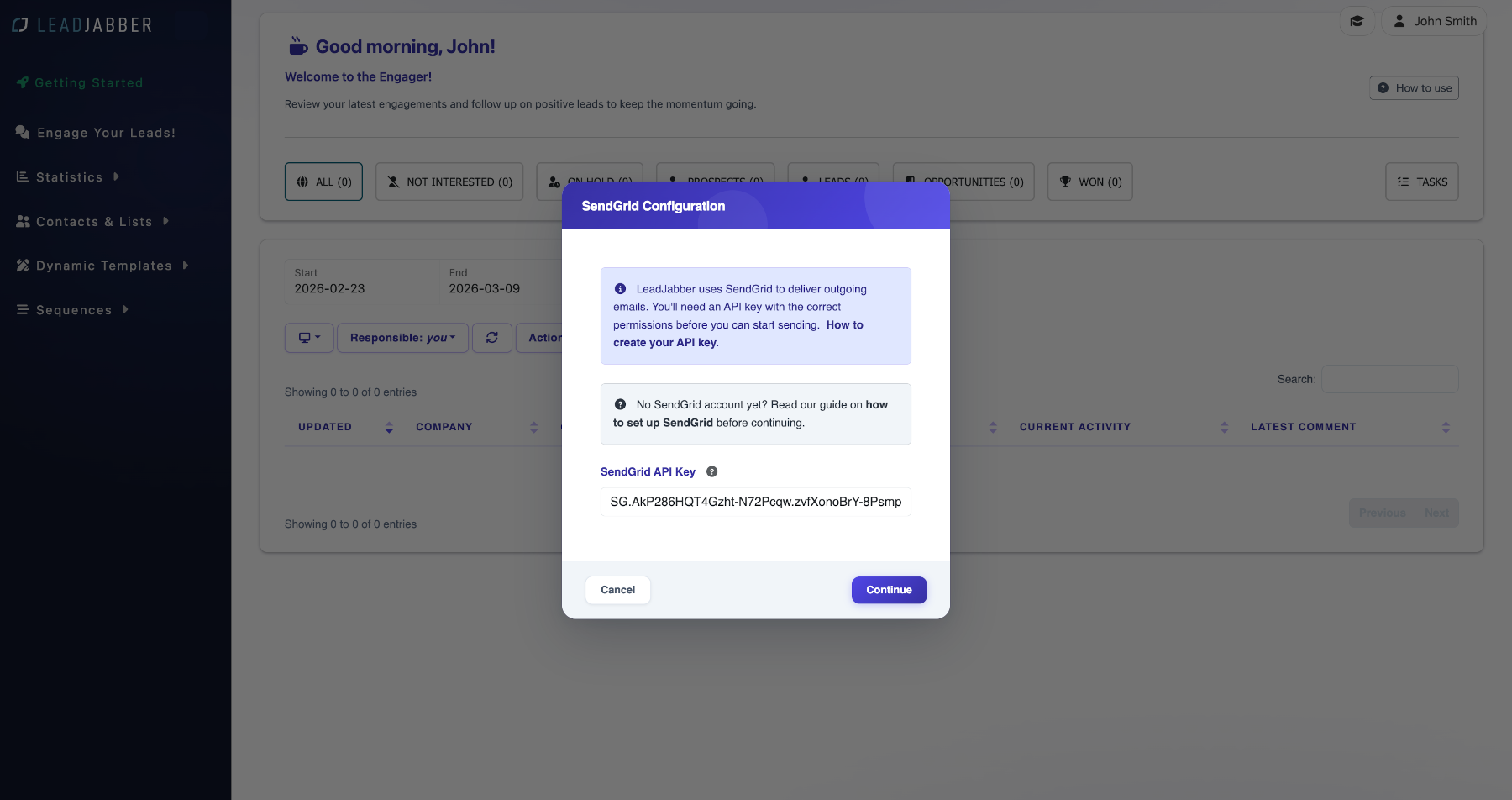
Paste your SendGrid API key into the field and click Continue.
-
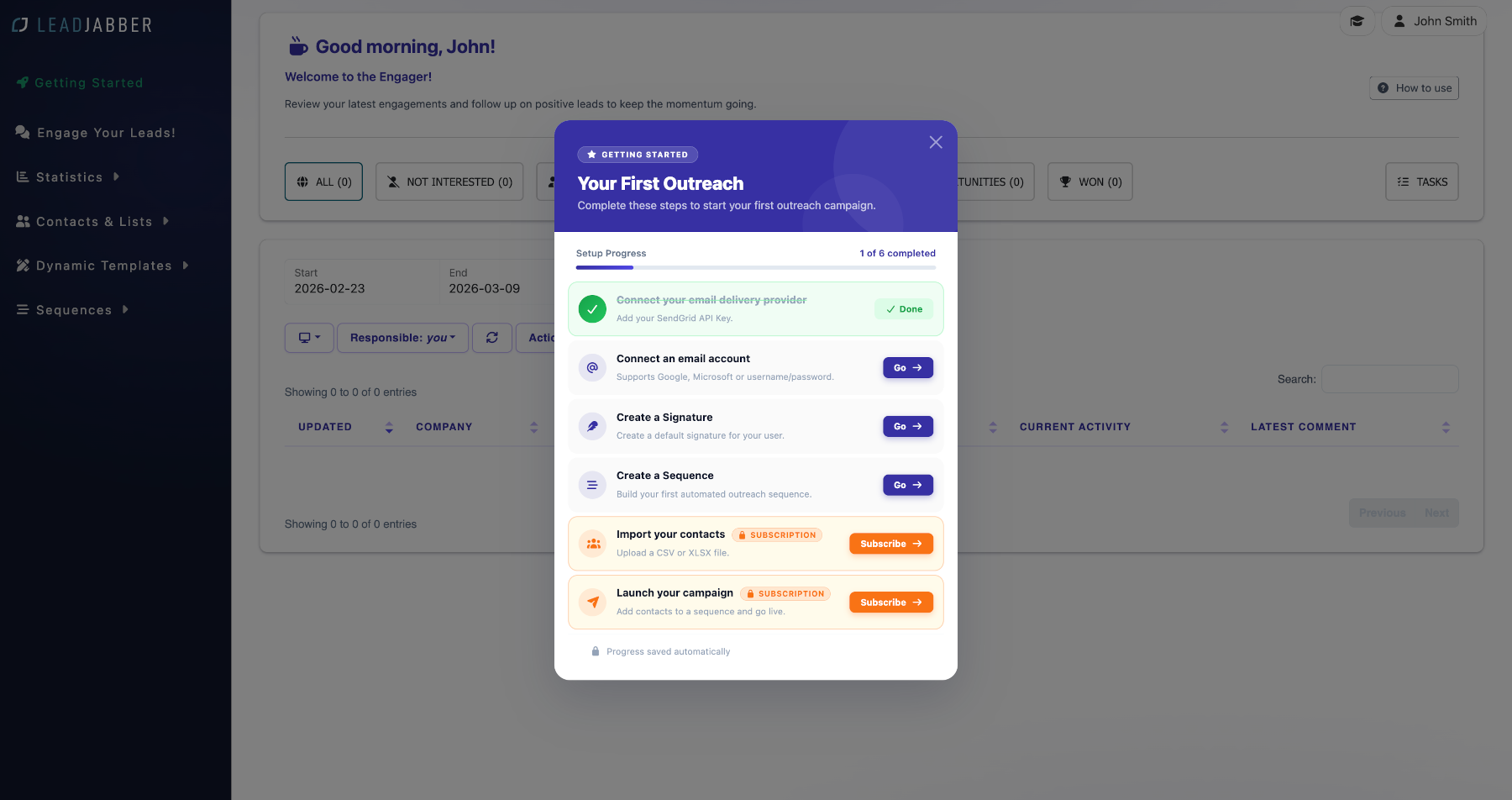
LeadJabber verifies the key. When it is accepted, you see a confirmation.
Next step
Before you send, authenticate your domain in SendGrid. Without it, your emails are likely to land in spam.
Change the key later
The Getting started menu disappears when the setup is complete. To change the key or switch provider after that, see Change your email provider or API key.
When to contact support
Contact us if the key is rejected even though it has Mail Send, Event Notification and Sender Authentication permissions. Email support@leadjabber.com with a screenshot of the error. Never send the key itself.
Did this article solve your problem?