
Add contacts to a sequence
Short answer
Go to Sequences in the left menu, choose Sequences, select the sequence and click Manage. Click the add contact icon on the stage you want, usually stage 1, and choose New contact, Existing contact or List of contacts. Then choose when they should start and click Continue. You can also add a single contact from their contact card.
Open the sequence manager
-
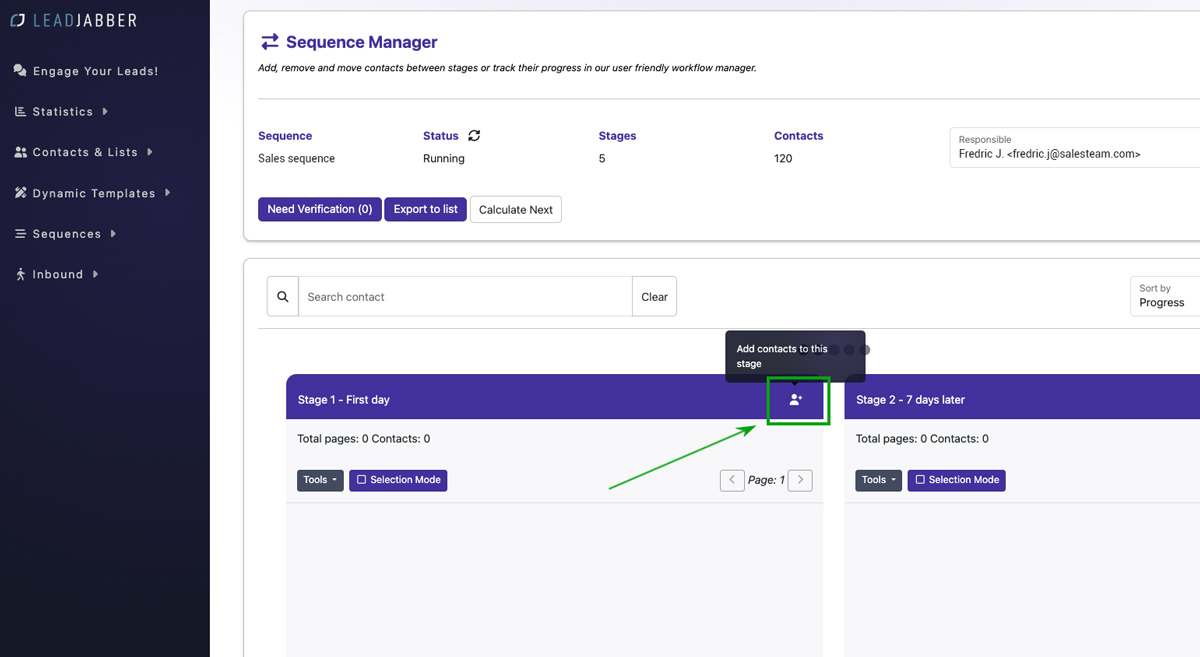
Go to Sequences, then Sequences, select the sequence and click Manage. You can also double-click the sequence name. Admins can see other users’ sequences by choosing the user under Responsible.

-
Click the add contact icon on the stage the contacts should start in. This is normally stage 1. Use a later stage only when someone needs to continue from a specific point.
Add a new contact
Use this for someone who is not in LeadJabber yet.
-
Choose New contact.

-
Fill in the contact information and save.

-
Next, choose when the contact enters the stage. By default LeadJabber uses the time set for the stage in the Sequence Builder. Pick another date and time, or check Activate instantly to start right away. See Choose when contacts are sent for details.

-
Click Continue.
Add an existing contact
-
Choose Existing contact.

-
Search by name or email address and select the contact. Check Replace if the contact is already in the sequence and you want to restart them in this stage.

-
Next, choose when the contact enters the stage. By default LeadJabber uses the time set for the stage in the Sequence Builder. Pick another date and time, or check Activate instantly to start right away. See Choose when contacts are sent for details.
-
Click Continue.
Add a list of contacts
-
Choose List of contacts.

-
Choose the list. Check Replace if contacts already in the sequence should restart in this stage.

-
Next, choose when the contact enters the stage. By default LeadJabber uses the time set for the stage in the Sequence Builder. Pick another date and time, or check Activate instantly to start right away. See Choose when contacts are sent for details.
-
Click Continue.
Avoid contacting someone twice
When you add existing contacts or a list, you can check Verify contacts who have been in a workflow the last X days. LeadJabber then checks whether anyone on your account has had the contact in a sequence in that period. For a single contact, you are asked whether to add them anyway. For a list, the contacts affected are held back and counted on the Need Verification button in the sequence manager, where you can add all, drop all or decide one by one.
Personalise the email for one contact
If the stage email has Use personalization options when available switched on, you can edit the email for that contact after you click Continue. Click Save Changes and Continue, or Continue Without Changes.
Add a contact from the contact card
Go to Contacts & Lists, then Contacts, and open the contact. Under Sequences on the right, click + Add, choose the sequence and the stage, choose when to start, and click OK. This route does not show the personalisation step, so use the sequence manager if you want to edit the email for the contact.
Next step
Replies show up in the Engager.
When to contact support
Contact us if contacts stay in Need Verification or do not start when scheduled. Email support@leadjabber.com with the name of the sequence and one of the contacts.
Did this article solve your problem?