
Connect a Microsoft 365 email account
Short answer
To connect a Microsoft 365 (Outlook or Exchange) account, go to User Profile, then Email Accounts, click Connect new and choose Microsoft. Sign in with the account and accept the access LeadJabber asks for.
Before you begin
You need an email address on your own domain hosted by Microsoft 365, and you must be able to sign in to it. Not on Microsoft? See Connect your email account to LeadJabber for the other options.
Steps
-
In LeadJabber, open the Getting started menu and click Connect an email account.

-
In User Profile, find Email Accounts and click Connect new.

-
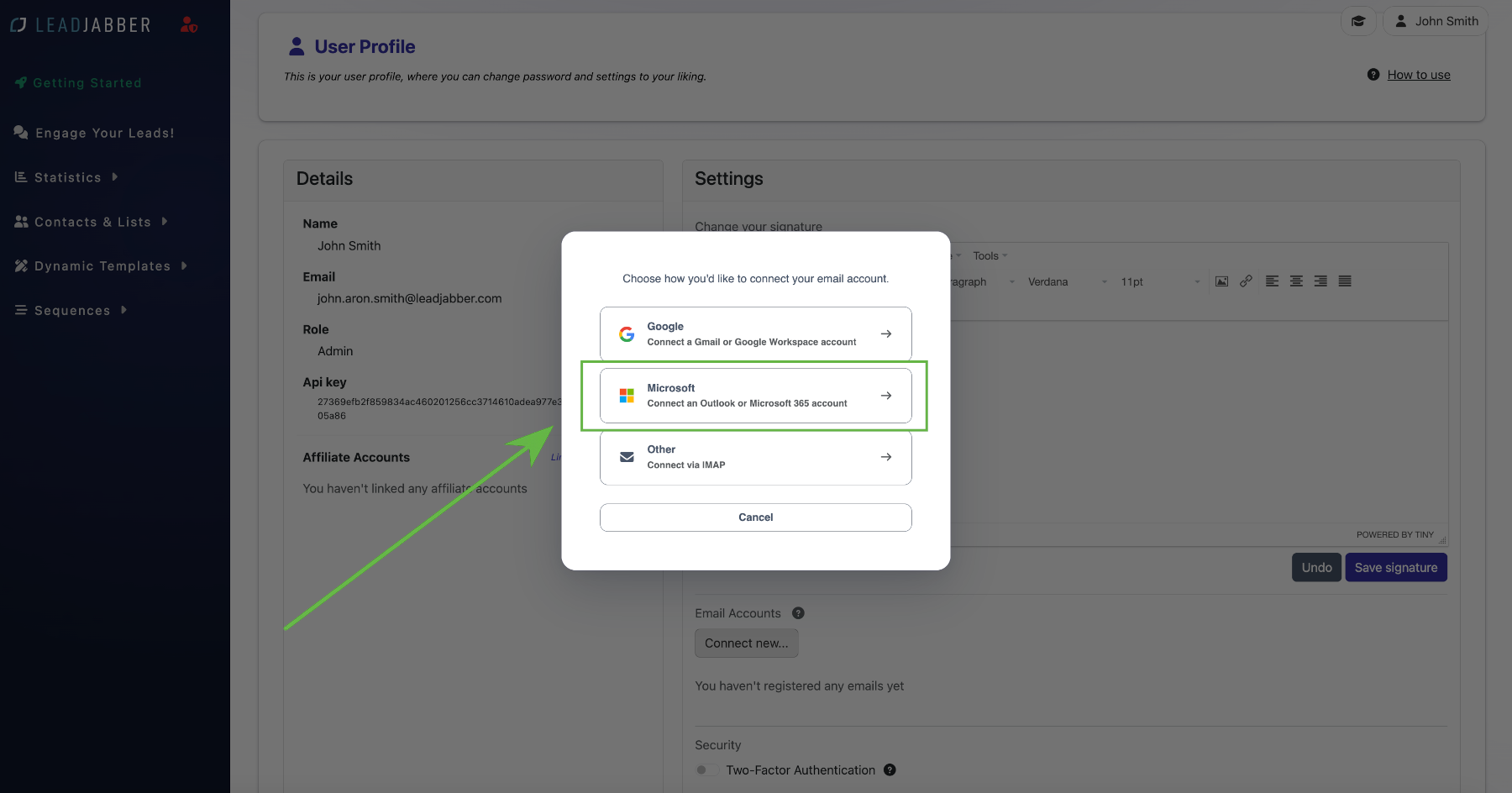
Choose Microsoft.
-
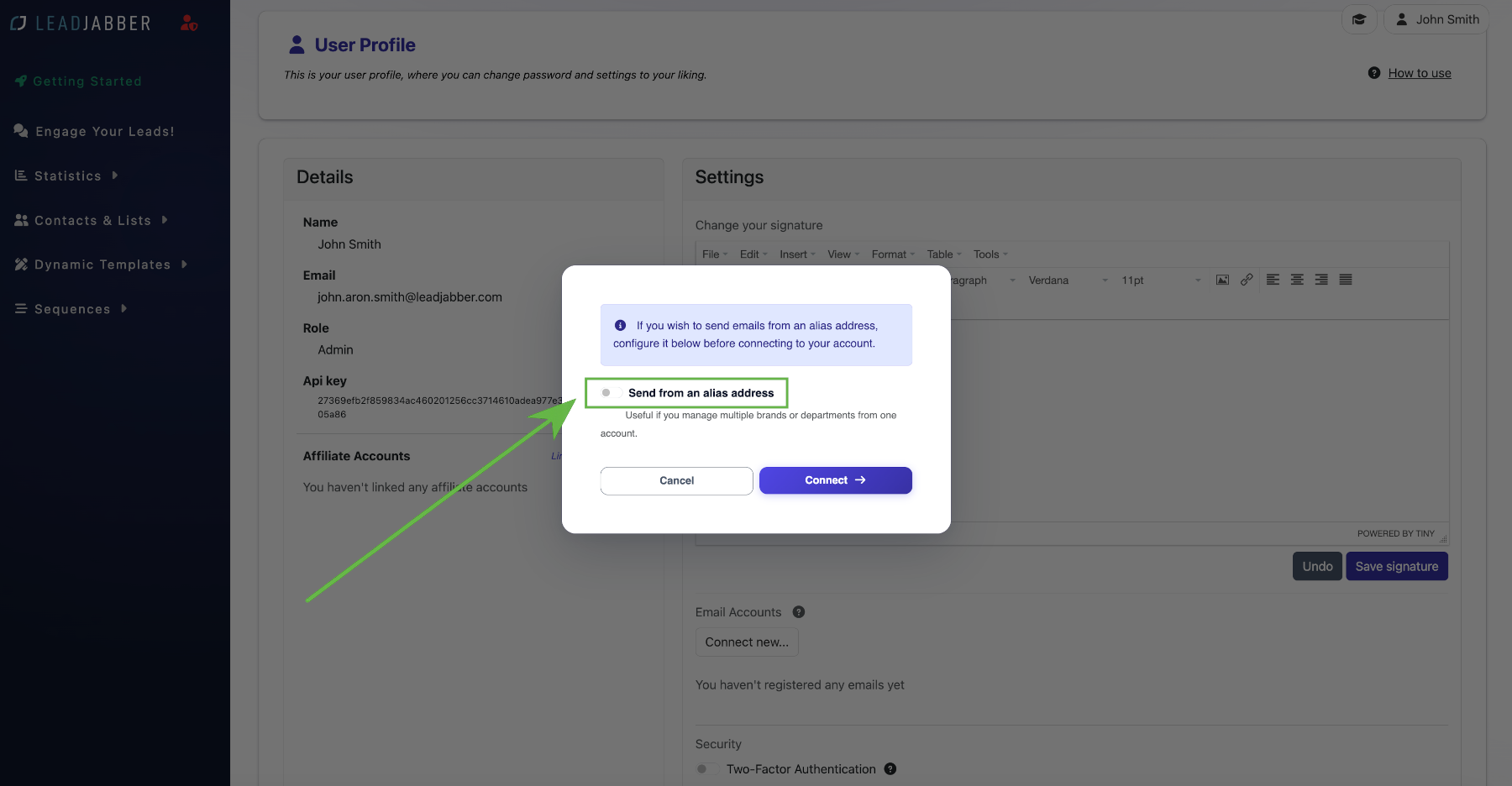
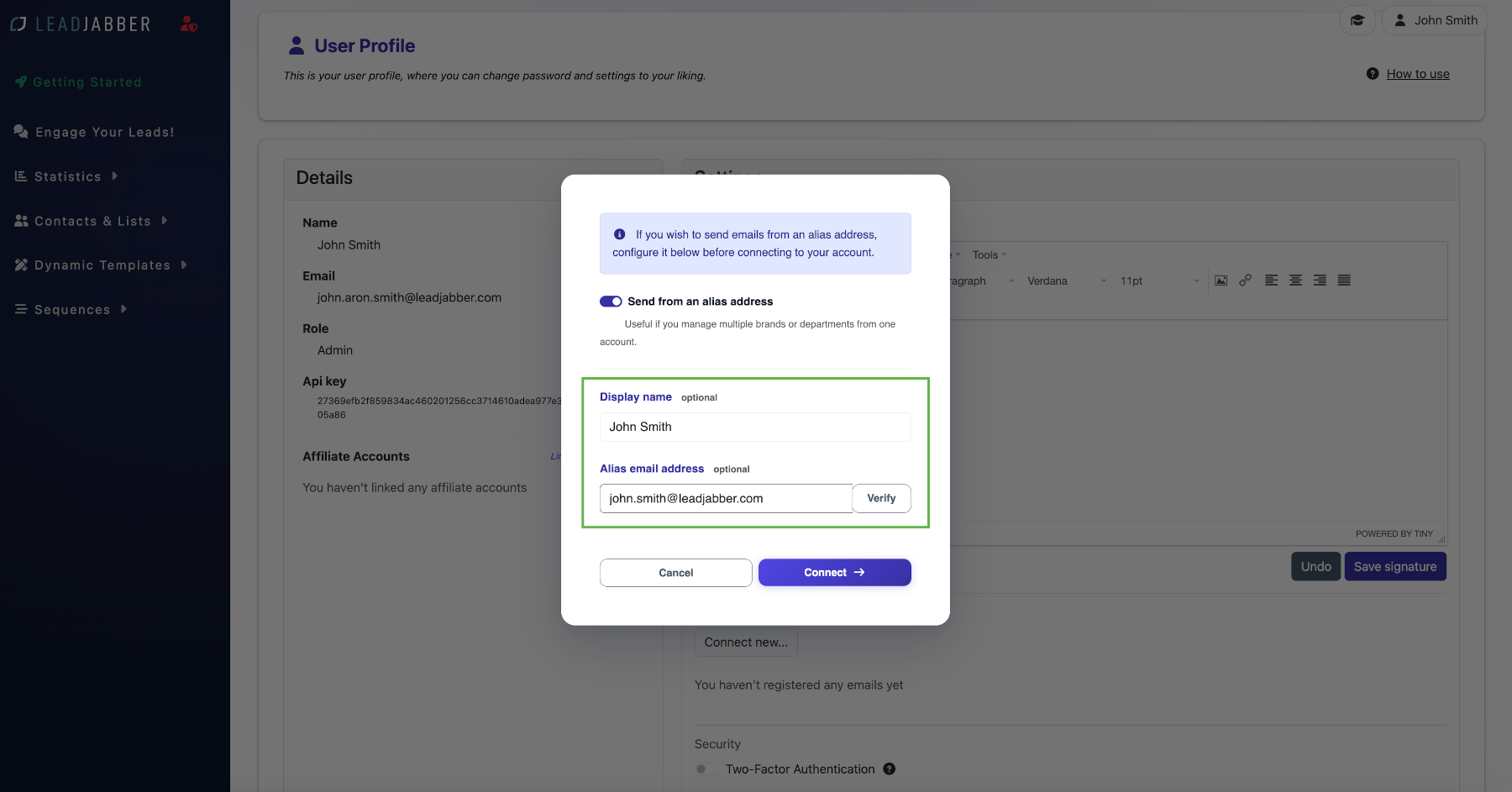
If you want to send from an alias address, check the alias box and enter the sender name and alias address. If not, leave it unchecked. Click Connect.
-
Microsoft opens a sign-in window. Select the account you want to connect. If you only have one, it is selected automatically.

-
Accept the access LeadJabber asks for. LeadJabber needs it to register replies.

-
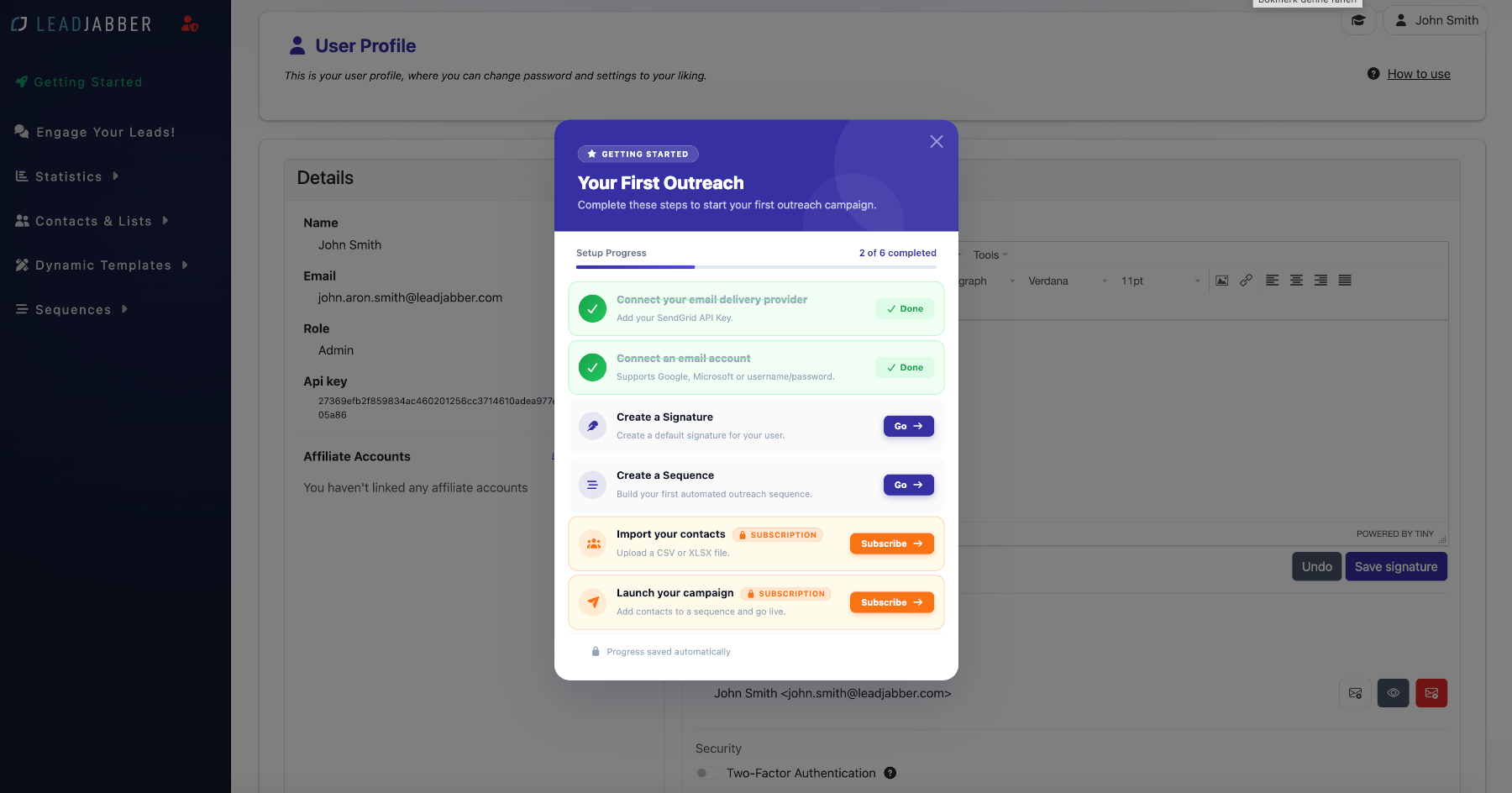
The account now shows as connected in your profile, and you can start sending from it.
Some organisations require an administrator to approve new apps. If Microsoft says admin approval is needed, LeadJabber shows a link and a short explanation you can copy. Send both to your Microsoft 365 administrator, who opens the link and approves LeadJabber for your organisation. Then connect the account again.
When to contact support
Contact us if the connection keeps failing after admin approval. Email support@leadjabber.com with the address you are connecting and a screenshot of the error.
Did this article solve your problem?