
Connect an email account with IMAP and SMTP
Short answer
If your email is not hosted by Google or Microsoft, connect it with IMAP and SMTP. Go to User Profile, then Email Accounts, click Connect new, choose Other, and enter your sender details, password and mail server addresses.
Before you begin
Have these ready: the email address and its password, the incoming server (IMAP) and the outgoing server (SMTP). Your email provider lists the server addresses in its help pages or control panel.
Steps
-
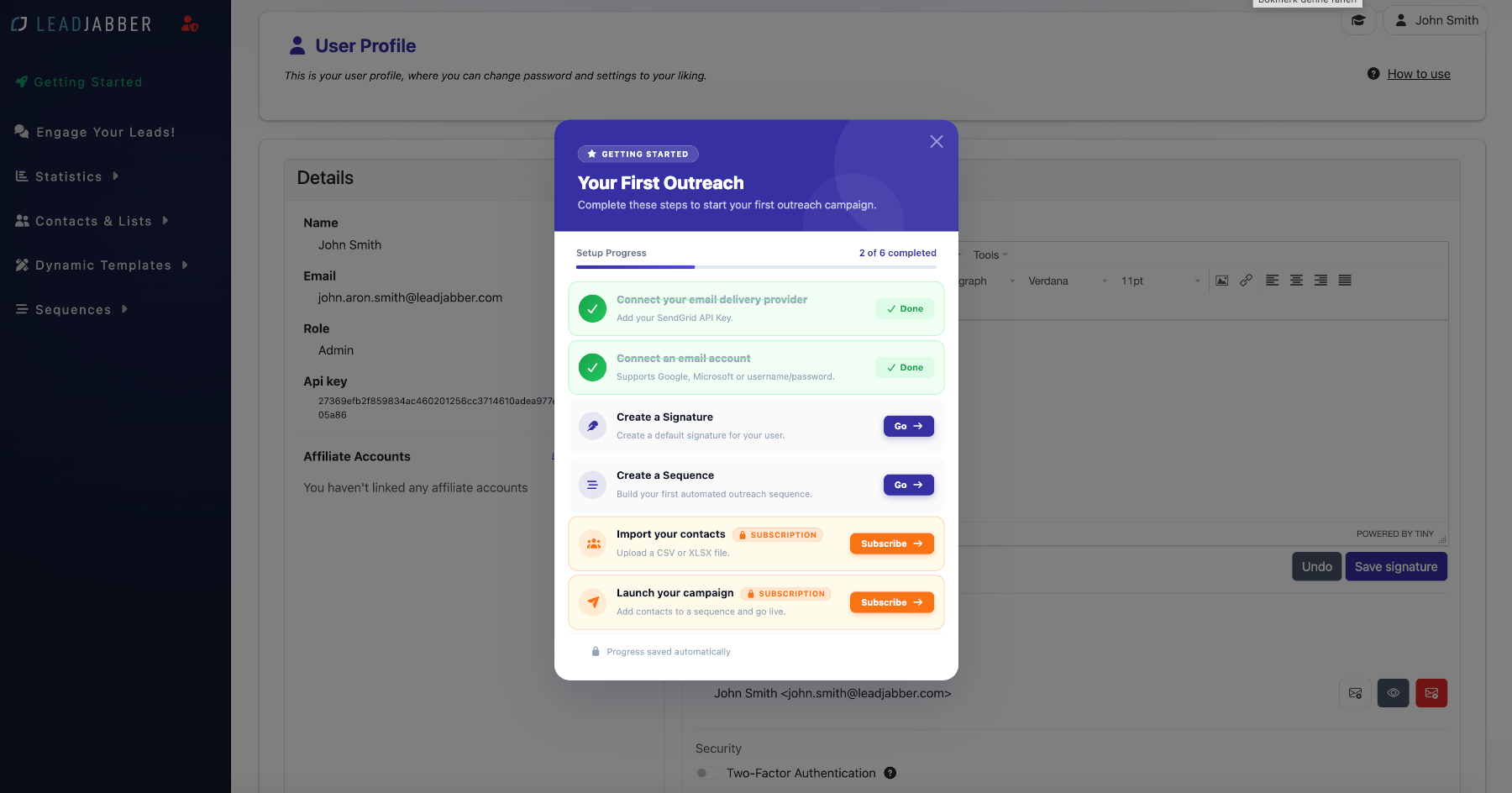
In LeadJabber, open the Getting started menu and click Connect an email account.

-
In User Profile, find Email Accounts and click Connect new.

-
Choose Other.

-
Enter the name you want to send from, the email address and the password for the account.

-
To send from an alias, click Send from an alias address and enter the alias name and address. If not, go to the next step.

-
Enter the incoming server (IMAP) and the outgoing server (SMTP). Keep the default ports and encryption unless your provider tells you otherwise.

-
Save. The account now shows as connected, and you can start sending from it.
Connection refused even though the password is correct? Many providers require an app password when two-step verification is switched on. Create an app password in your email provider’s security settings and use it instead of your normal password.
When to contact support
Contact us if the connection still fails with the server details from your provider. Email support@leadjabber.com with your provider name and the server addresses you used. Never send your password.
Did this article solve your problem?