
Create a sequence in the Sequence Builder
Short answer
A sequence is a series of stages, each with a duration and one or more actions such as sending an email. Click Create a Sequence (or Sequences, then New Sequence), add a stage, add a Send an Email action, repeat for each follow-up, then open Settings and Save to name the sequence and choose the reply and unsubscribe settings.
How a sequence works
A sequence is a workflow made up of stages. Each stage has a duration, for example 7 days, and one or more actions, for example sending an email. Contacts move through the stages automatically until they reply, are removed or reach the end. When the sequence is ready, you add contacts to it in the sequence manager.
Add the first stage and email
-
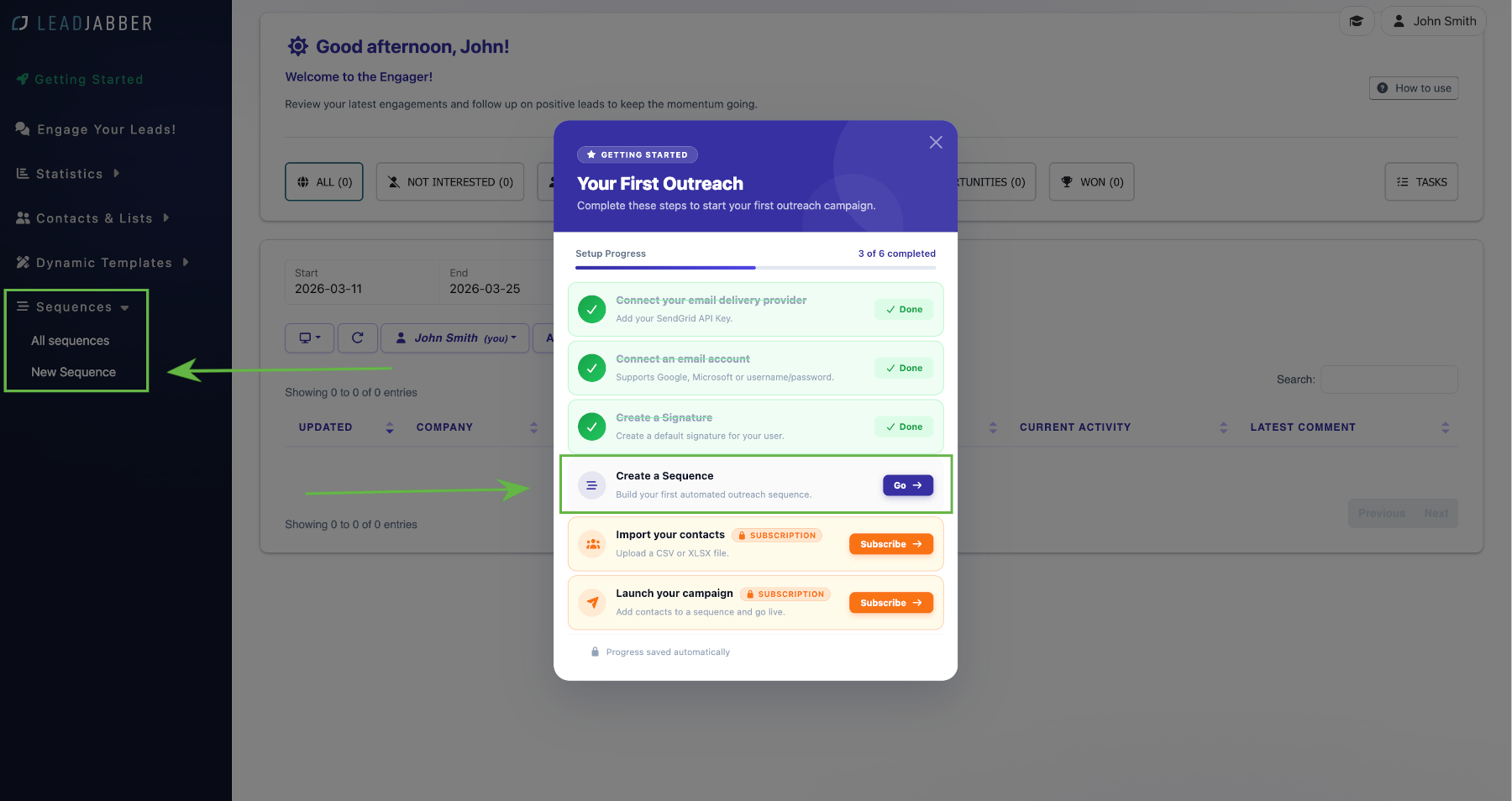
Click Create a Sequence, or go to Sequences and click New Sequence. The Sequence Builder opens with the settings for the first stage.
-
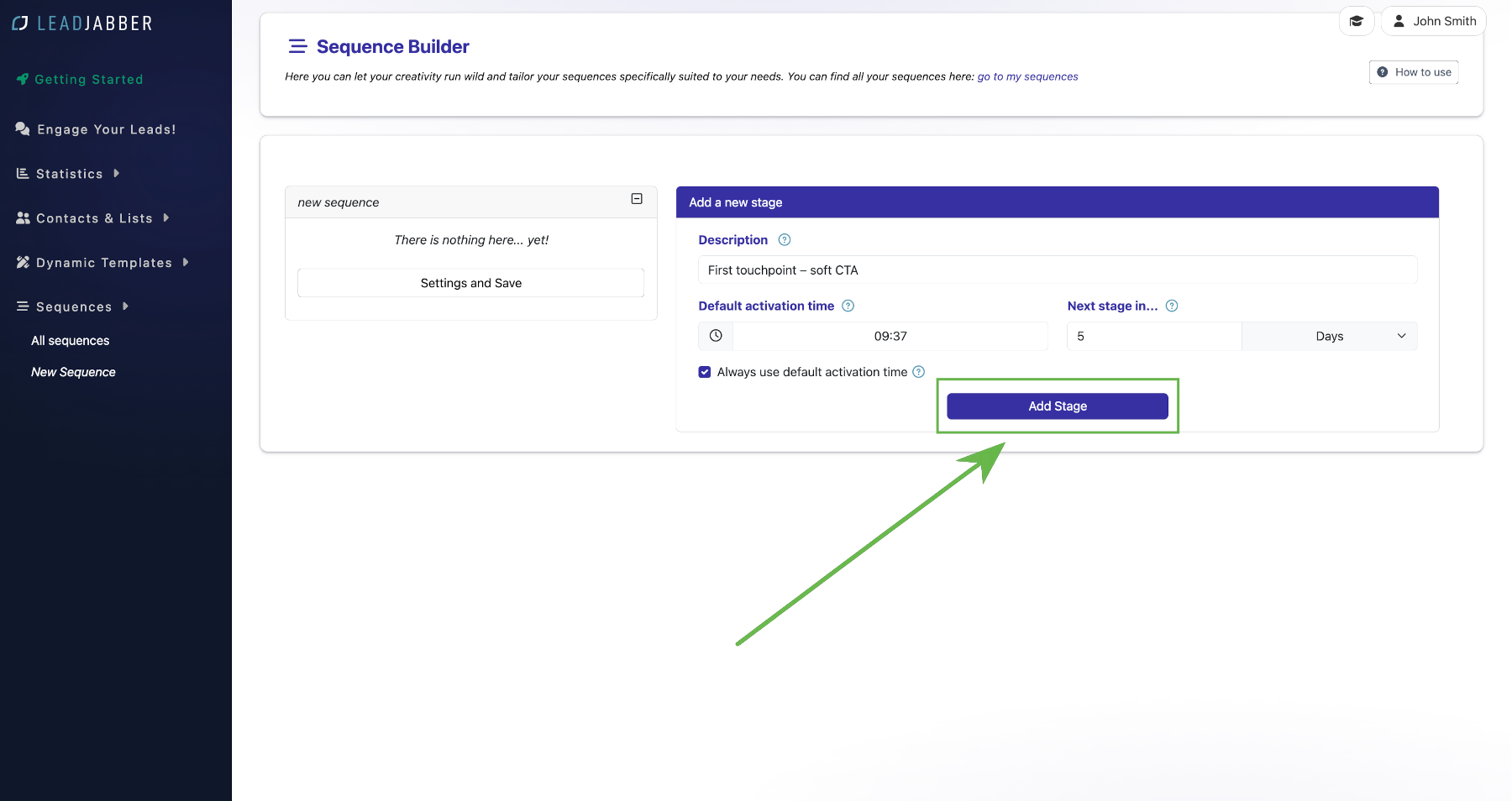
Add a description if you like. Set the Default activation time, which is when the stage and its email are sent by default, and Next stage in, which is how long until the next stage starts.

-
Click Add Stage to save the stage.
-
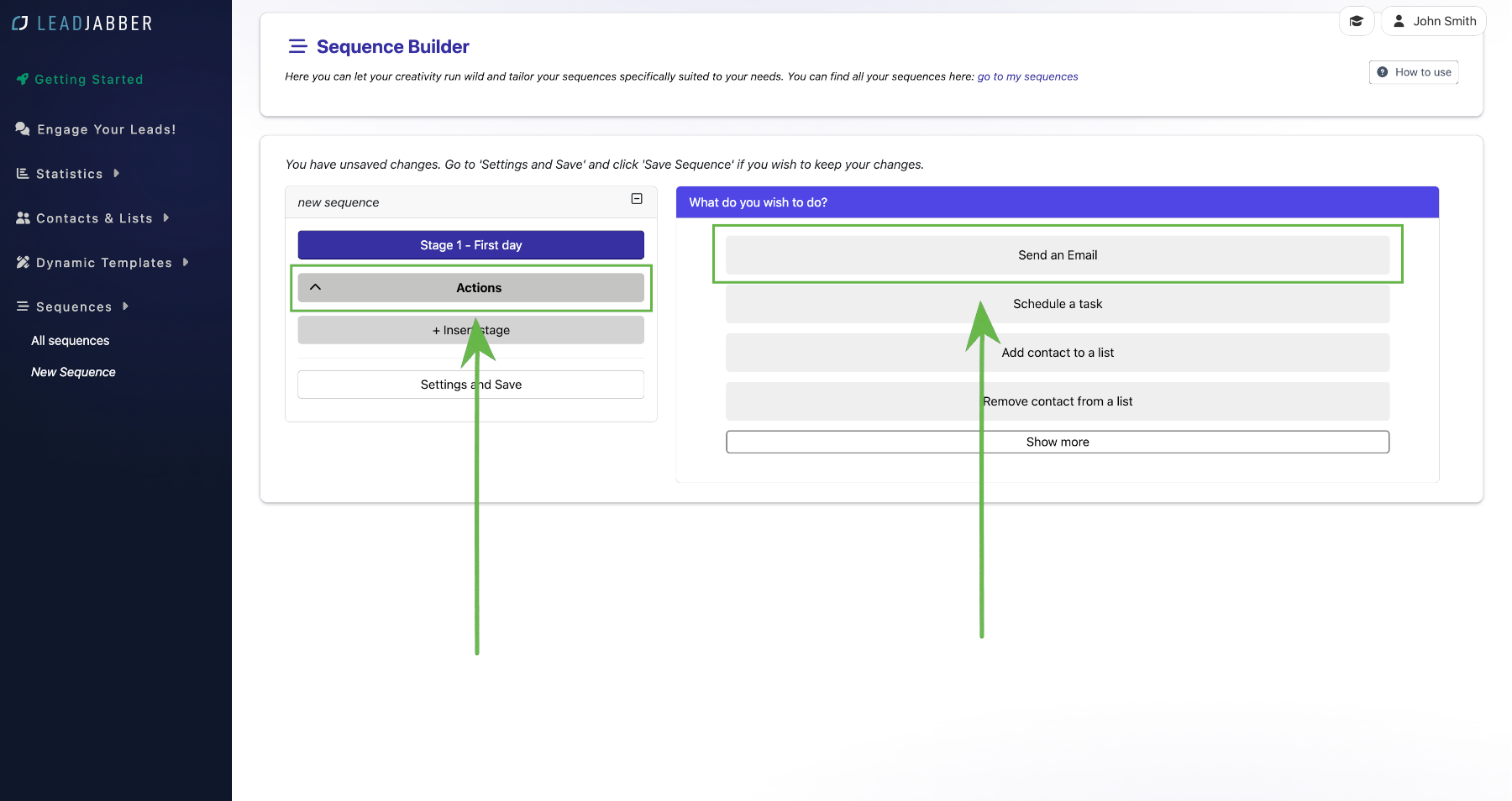
Click Actions under Stage 1 and select Send an Email.
-
Set the sender name and address and write the subject. Use the Subject variables dropdown to insert contact fields such as firstname or companyname.

-
Choose Select an Email to use an email you have already written, or Create a new email to write it here. Use the Variables dropdown to insert contact fields.


-
Click Accept to save the email.
Email options worth switching on
- Include in subsequent e-mails shows earlier emails below each follow-up, so the recipient sees the whole thread.
- Use personalization options when available lets you adjust the email for an individual contact when you add them to the sequence.
Add follow-ups
-
Click + Insert stage in the left panel, fill in the stage settings and add a Send an Email action as above.

-
The subject is filled in with the previous subject and a
re:prefix, so the recipient sees it as a follow-up. Keep it or change it.
Repeat for as many follow-ups as you need.
Save and activate the sequence
-
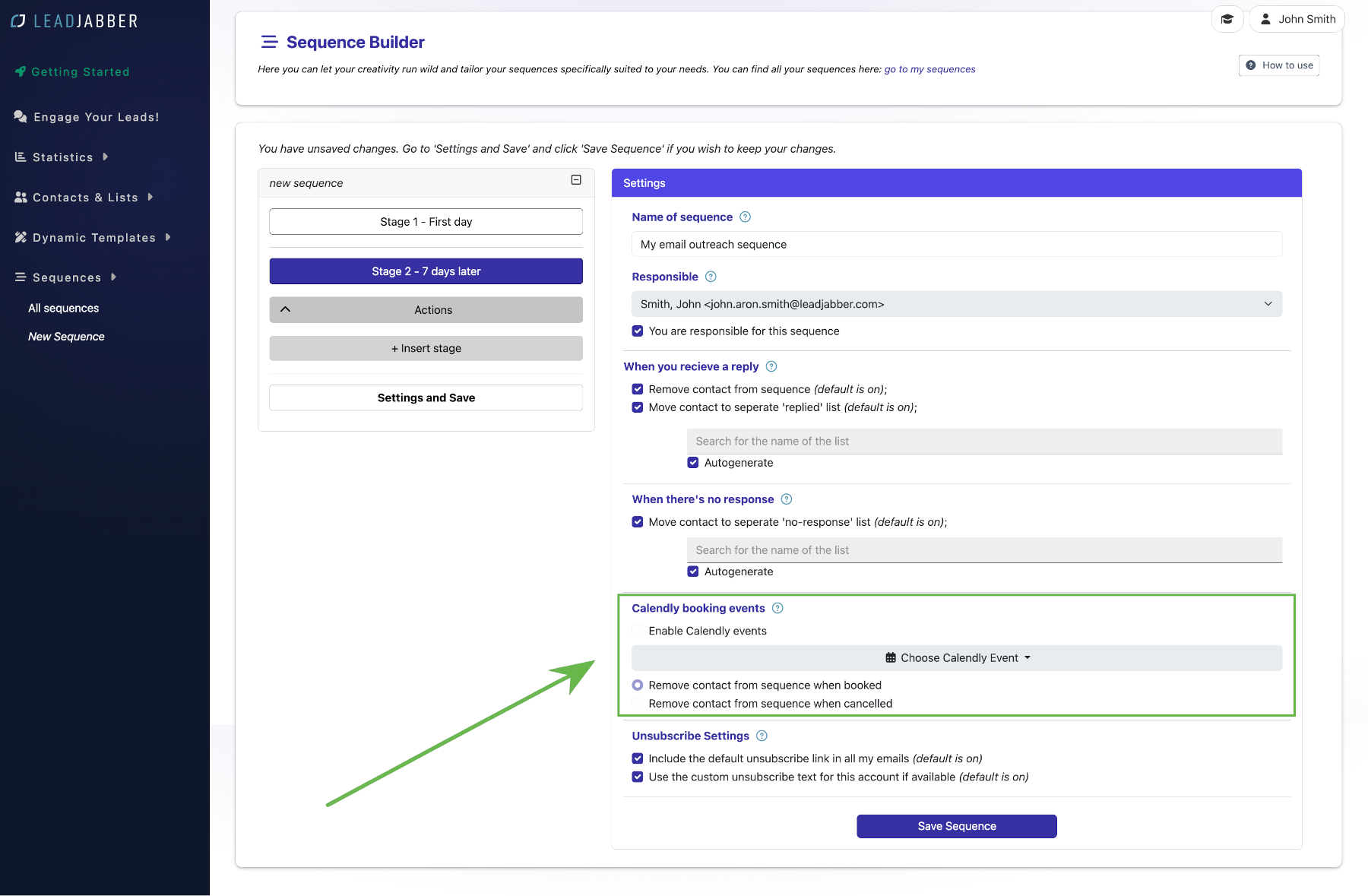
Click Settings and Save. Name the sequence and choose who is Responsible. That person handles the replies in the Engager.

-
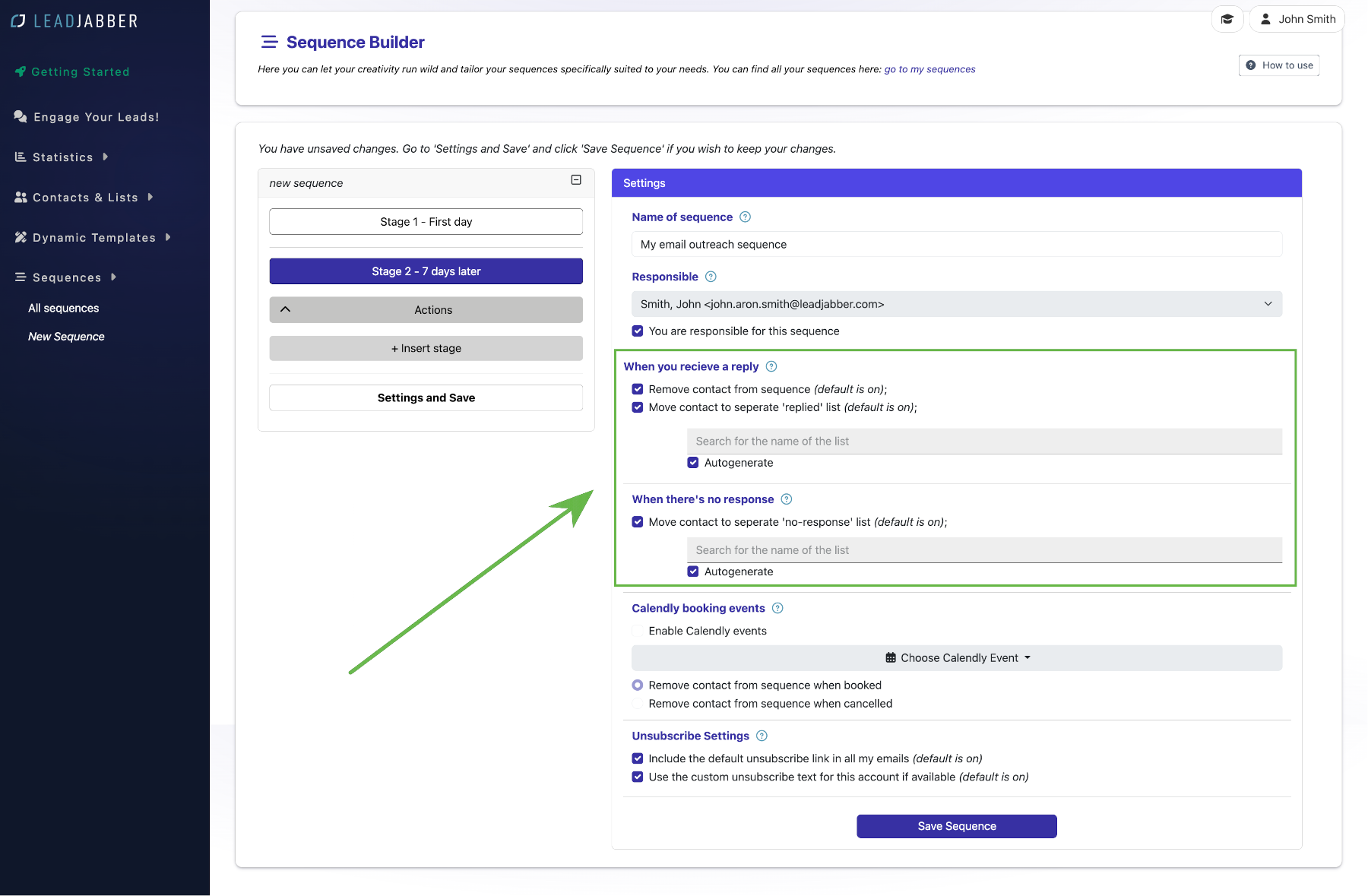
Check the reply settings. By default LeadJabber removes contacts from the sequence when they reply, and we strongly recommend keeping that on. It can also create a list of contacts who replied and a list of those who did not.
-
If you have connected Calendly, choose whether contacts are removed when they book or cancel a meeting.
-
Choose the unsubscribe link: the standard link, your own custom link (set under Contacts & Lists, then Unsubscribed, then Custom unsubscribe link), or none.

-
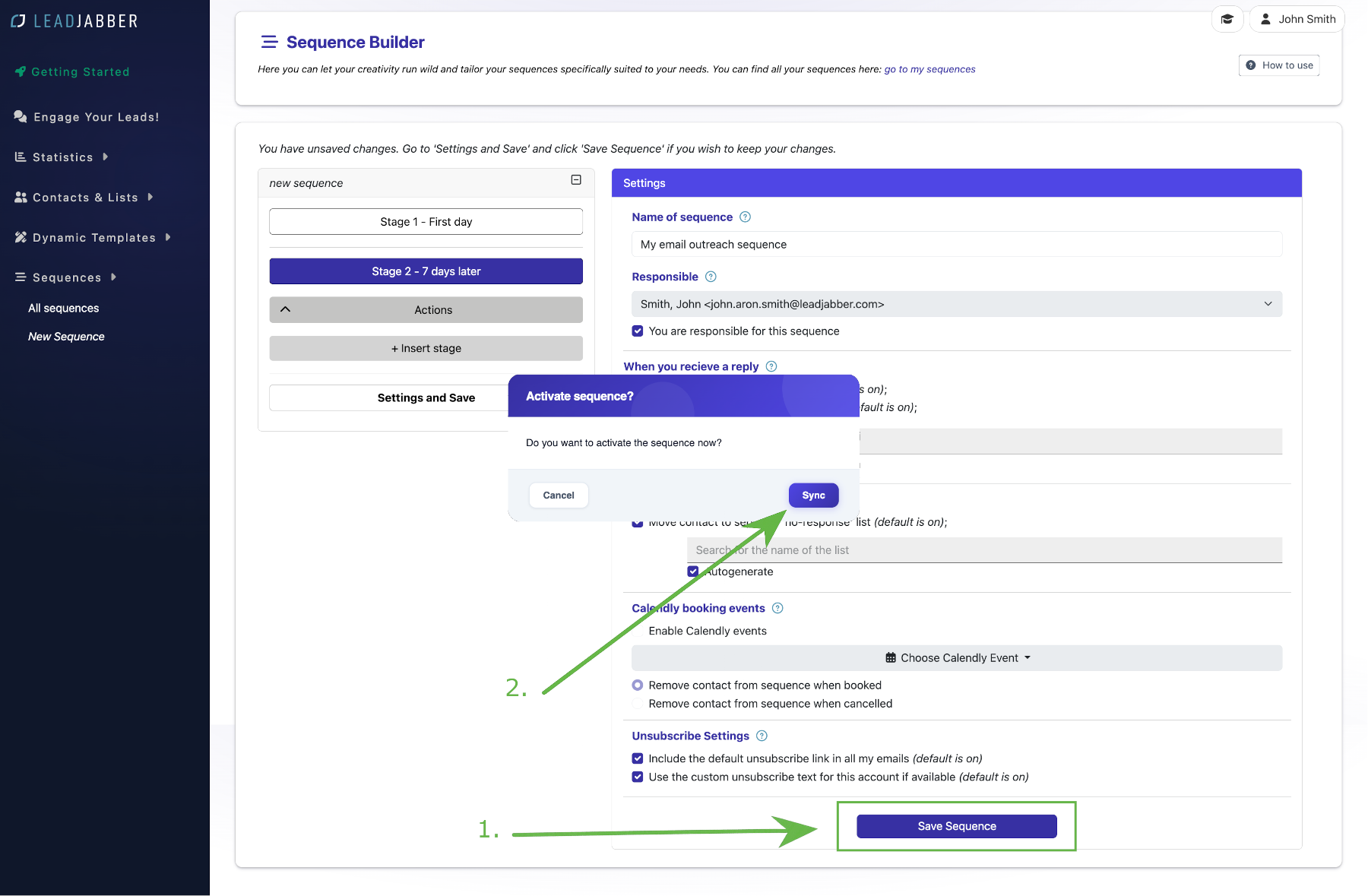
Click Save Sequence. Click Sync to activate it now, or Cancel to activate it later.
Next step
When to contact support
Contact us if a sequence does not start sending after you have activated it and added contacts. Email support@leadjabber.com with the name of the sequence.
Did this article solve your problem?